

Before you start
- Understanding start-up, services and WinSxS: see Windows 11 under the hood
In plain words
Repairing Windows is like treating a patient: you start by listening and observing, you try the gentlest treatment, and you only bring out surgery (a reinstall) as a last resort. And as in medicine, the best repair is still prevention: backups, updates, monitoring.
1. The method: from the gentlest to the most drastic
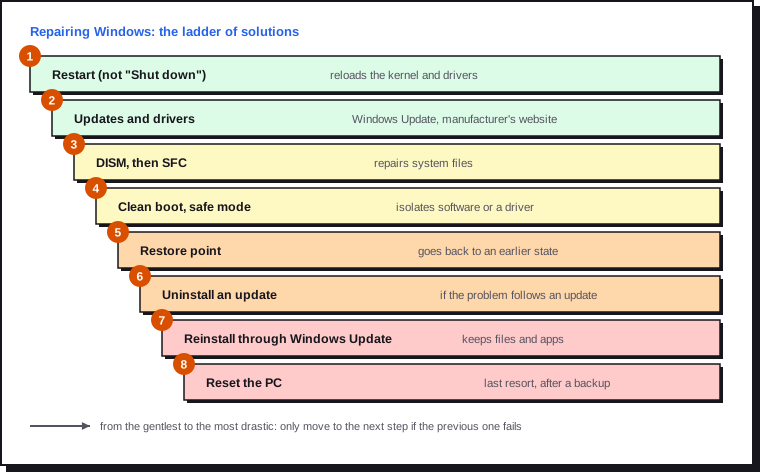
Before acting, answer three questions:
- Since when? An update, new software or a new device just before the problem often points to the culprit.
- Is it reproducible? A problem that happens at every start-up doesn't have the same cause as a random crash.
- What do the logs say? Reliability Monitor (section 5) often answers in a minute.
And before any heavy intervention: back up your data and write down the BitLocker key (see Windows 11 security).
2. Windows Update in depth
View the history: Settings › Windows Update › Update history. For technical details:
Get-HotFix | Sort-Object InstalledOn -Descending | Select-Object -First 10
Get-WindowsUpdateLog    # generates WindowsUpdate.log on the Desktop
Fix a stuck update (repeated error, frozen download) by resetting the Windows Update components, in an administrator PowerShell:
Stop-Service wuauserv, bits, cryptsvc -Force
Rename-Item C:\Windows\SoftwareDistribution SoftwareDistribution.old
Rename-Item C:\Windows\System32\catroot2 catroot2.old
Start-Service wuauserv, bits, cryptsvc
Check for updates again. The .old folders can be deleted a few days later.
Uninstall a faulty update: Settings › Windows Update › Update history › Uninstall updates. If Windows no longer starts, the same option exists in the recovery environment (section 7). Microsoft also remotely reverts some changes when a bug is confirmed ("Known Issue Rollback"): a restart is then enough.
Pausing updates for one to five weeks (Settings › Windows Update) lets you wait for a fix when a known bug affects an update, without going without security patches for long.
Reinstall Windows without losing anything. Settings › System › Recovery › Fix problems using Windows Update downloads and reinstalls the current version of Windows while keeping files, apps and settings. It's the most effective solution when the system is damaged but still starts.
3. DISM and SFC: repairing system files
The two tools complement each other, and the order matters:
| Tool | What it repairs | Source |
|---|---|---|
| DISM | The component store (WinSxS), the template for all system files | Windows Update or an installation image |
| SFC | The system files in use, from the store | The component store |
If the store is damaged, SFC repairs from a bad source: so run DISM first.
Dism /Online /Cleanup-Image /ScanHealth
Dism /Online /Cleanup-Image /RestoreHealth
sfc /scannow
If DISM can't reach Windows Update, use an ISO image of the same version of Windows, mounted as drive E:. First find the number (index) of your edition in the image: 1 isn't necessarily yours.
# List the editions in the image (install.wim or install.esd depending on the ISO)
Dism /Get-WimInfo /WimFile:E:\sources\install.wim

# Repair from your edition's index (here 6, for example Windows 11 Pro)
Dism /Online /Cleanup-Image /RestoreHealth `
  /Source:WIM:E:\sources\install.wim:6 /LimitAccess
With an ISO created by the Media Creation Tool, the file is called install.esd: replace WIM: with ESD: and install.wim with install.esd in both commands.
The repair details are in C:\Windows\Logs\CBS\CBS.log (search for "Cannot repair").
4. Disk and memory
Disk health (SMART):
Get-PhysicalDisk | Select-Object FriendlyName, MediaType, HealthStatus
Get-PhysicalDisk | Get-StorageReliabilityCounter |
  Select-Object Temperature, Wear, ReadErrorsTotal, PowerOnHours
Run these commands in an administrator PowerShell. A high Wear value (wear as a percentage for an SSD) or rising read errors signal that a replacement is due: back up immediately. Many drives don't report all these values: an empty field doesn't mean "no problem"; the manufacturer's tool or CrystalDiskInfo (open source) then give the details. The page Choosing an SSD helps with the replacement.
The file system:
Repair-Volume -DriveLetter C -Scan        # online scan, no restart
Repair-Volume -DriveLetter C -SpotFix     # fixes the errors found (at restart for the system drive)
RAM: run mdsched.exe (Windows Memory Diagnostic). The PC restarts and tests the memory; the result appears when you sign back in. For a more thorough test (several hours), MemTest86 or Memtest86+ (open source) boot from a USB stick. A single memory error is enough to explain random crashes.
5. Reading the logs
Reliability Monitor is the best starting point: a day-by-day timeline of crashes, updates and installations.
perfmon /rel
A red cross on the day the problem started, just after installing software or a driver, often points to the cause.
Event Viewer (eventvwr.msc), System and Application logs: the events to know.
| Source and ID | Meaning |
|---|---|
| Kernel-Power 41 | Unexpected shutdown: power cut, crash or button held down |
| EventLog 6008 | The previous shutdown was unexpected |
| BugCheck 1001 | Blue screen, with its code |
| WHEA-Logger 17, 18, 19 | Hardware error reported by the processor, memory or PCIe bus |
| disk 7, 153 or stornvme 129 | Disk access errors or timeouts: drive, cable or driver |
| Service Control Manager 7000, 7031, 7034 | A service doesn't start or stopped abruptly |
| Application Error 1000 | An application crashed (faulting module name included) |
Get-WinEvent -FilterHashtable @{LogName='System'; Level=1,2} -MaxEvents 30 |
  Select-Object TimeCreated, ProviderName, Id, Message | Format-List
6. Blue screens
The blue screen shows a stop code (for example IRQL_NOT_LESS_OR_EQUAL, PAGE_FAULT_IN_NONPAGED_AREA) and sometimes the name of the faulty driver. Windows saves a report in C:\Windows\Minidump.
| Common code | Usual cause |
|---|---|
IRQL_NOT_LESS_OR_EQUAL, DRIVER_IRQL_NOT_LESS_OR_EQUAL |
Faulty driver |
PAGE_FAULT_IN_NONPAGED_AREA |
Faulty memory or driver |
WHEA_UNCORRECTABLE_ERROR |
Hardware error: processor, overclocking, power supply |
CRITICAL_PROCESS_DIED |
System process killed: system files, disk, security software |
INACCESSIBLE_BOOT_DEVICE |
Boot disk not found: storage driver, SATA mode changed in the BIOS |
KERNEL_SECURITY_CHECK_FAILURE |
Driver or memory |
Analysing a report with WinDbg, the official tool:
Step 1. Install it: winget install Microsoft.WinDbg.
Step 2. Run it as administrator, File › Open dump file, and choose the latest file in C:\Windows\Minidump.
Step 3. Type the following command and read the MODULE_NAME and IMAGE_NAME lines:
!analyze -v
The module named (for example nvlddmkm.sys for an Nvidia graphics card, rt640x64.sys for a Realtek network card) tells you which driver to update or roll back. If the blue screens name a different module each time, suspect the hardware instead: memory, power supply, overclocking.
7. The recovery environment (WinRE)
Getting there:
- from Windows: hold Shift while clicking Restart;
- from the command line:
shutdown /r /o /t 0; - automatically after two failed start-ups;
- from a Windows installation USB stick: Repair your computer.
Check that it's in place: reagentc /info should show "Enabled".
| WinRE tool | Use |
|---|---|
| Startup Repair | Automatically fixes boot loader and configuration problems |
| Uninstall Updates | Removes the latest quality or feature update |
| System Restore | Goes back to a restore point |
| Startup Settings | Safe mode, disable driver signature enforcement, boot logging |
| Command Prompt | Offline DISM, copying files, repairing the boot loader |
| UEFI Firmware Settings | Direct access to the BIOS |
| Reset this PC | Reinstall, keeping or removing files |
Quick machine recovery, introduced with versions 24H2 and 25H2, lets WinRE connect to the network and look for a fix on Windows Update when the PC no longer starts. Turn it on in Settings › System › Recovery › Quick machine recovery. The more recent point-in-time restore brings the whole PC back to its state a few hours earlier, within the last 72 hours, from local snapshots. It's turned on in Settings › System › Recovery and launched from WinRE (Troubleshoot), with the BitLocker key.
It restores your files too
Unlike System Restore, point-in-time restore returns apps, settings and personal files to their state at that time: anything created or modified since is lost. Copy your recent files elsewhere before using it.
Rebuilding the UEFI boot loader from the WinRE Command Prompt, when automatic repair fails:
diskpart
list vol
select vol N        (N = the number of the roughly 100 MB FAT32 partition in the list)
assign letter=S
exit
bcdboot C:\Windows /s S: /f UEFI
First check with list vol which letter Windows has in WinRE: it isn't always C:.
8. Safe mode and clean boot
These two techniques isolate the cause: if the problem disappears, it comes from third-party software or a third-party driver.
Clean boot: run msconfig, Services tab, tick Hide all Microsoft services, then Disable all; in Task Manager, disable the startup apps. Restart. Then re-enable the items half at a time until you find the culprit.
Safe mode loads the bare minimum of drivers. From WinRE (Startup Settings › 4), or by forcing the next start-up:
# Next start-up in safe mode
bcdedit /set "{current}" safeboot minimal

# From safe mode, to go back to a normal start-up
bcdedit /deletevalue "{current}" safeboot
9. A backup strategy
No repair replaces a backup. The 3-2-1 rule: 3 copies of the data, on 2 different media, 1 of them off site (or offline). It's explained in detail in The 3-2-1 backup rule.
| Tool | What it backs up | Note |
|---|---|---|
| Windows Backup (app) | Folders, settings, list of apps to OneDrive | Handy for changing PC, depends on a Microsoft account and OneDrive space |
| File History | Successive versions of your folders to an external drive or a share | Simple and effective for files |
| System image (Control Panel › Backup and Restore) | The whole disk | Old tool, still present but no longer developed |
| Rescuezilla, Clonezilla (open source) | Full disk image from a USB stick | Reliable, independent of Windows |
| Restic, Kopia (open source) | Files, with deduplication and encryption, to a NAS or the cloud | Ideal for the off-site copy; the principle is explained in Backing up a Linux server with restic |
Test a restore at least once a year: a backup that has never been restored is only a hypothesis. When everything else has failed, the page Resetting Windows 11 explains the reinstall.
10. Maintenance plan
| Frequency | Action | Done? |
|---|---|---|
| Every month | Windows updates installed, PC restarted | ☐ |
| Every month | Apps up to date: winget upgrade --all |
☐ |
| Every month | Reliability Monitor checked | ☐ |
| Every quarter | Disk SMART status, free space above 15% | ☐ |
| Every quarter | Graphics, chipset and network drivers up to date | ☐ |
| Every quarter | Restore points active, WinRE working (reagentc /info) |
☐ |
| Every year | Backup restore test | ☐ |
| Every year | BIOS up to date (BitLocker suspended during the operation) | ☐ |
| Every year | Dust out the PC: see Laptops: what can be replaced | ☐ |
Sources
- Microsoft Learn: quick machine recovery
- Microsoft Learn: Windows Recovery Environment (WinRE)
- Microsoft Learn: repair a Windows image with DISM
- Microsoft Learn: WinDbg
- Microsoft Learn: point-in-time restore
- Microsoft Learn: DISM image management options (Get-WimInfo)
- Microsoft Learn: Repair-Volume
- Microsoft Learn: reset Windows Update components