

Before you start
- Being comfortable with File Explorer and opening a PowerShell terminal as administrator
In plain words
Windows is like a large building. The firmware is its foundations, the kernel the caretaker who controls every door, the drivers the technicians who know how to talk to each machine in the basement, the services the staff working behind the scenes day and night, and the registry the big filing cabinet holding all the rules. Applications are just tenants: they ask, the caretaker decides.
This guide explains what really happens in Windows 11, from the power button to the desktop. Understanding it helps you diagnose faster, optimise without breaking anything and read correctly what the system tools display.
1. The layers of Windows
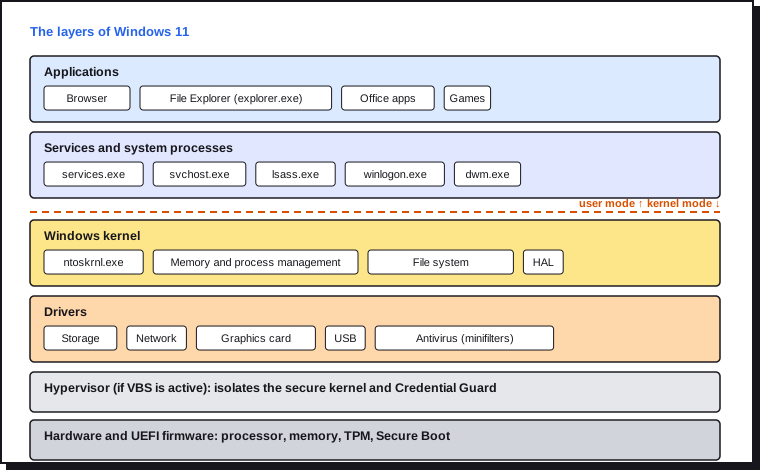
The processor works with two privilege levels:
| User mode | Kernel mode | |
|---|---|---|
| What runs there | Applications, services, most system processes | Kernel (ntoskrnl.exe), hardware abstraction layer (HAL), drivers |
| Hardware access | Never directly: goes through system calls | Direct |
| Memory | Each process has its own isolated space | Space shared by the whole kernel |
| Consequence of a crash | The application closes, the rest carries on | Blue screen: the whole system stops |
That's why a faulty driver causes a blue screen while a crashing application simply closes: the driver lives in the kernel's space, with no partition walls.
When virtualisation-based security (VBS) is active, which is the default on most recent PCs, a hypervisor slots in underneath the kernel. It creates an isolated area, inaccessible even to the kernel, which hosts in particular code integrity checking ("Memory integrity") and credential protection (Credential Guard). The Windows 11 security guide covers this in detail.
2. Start-up, step by step
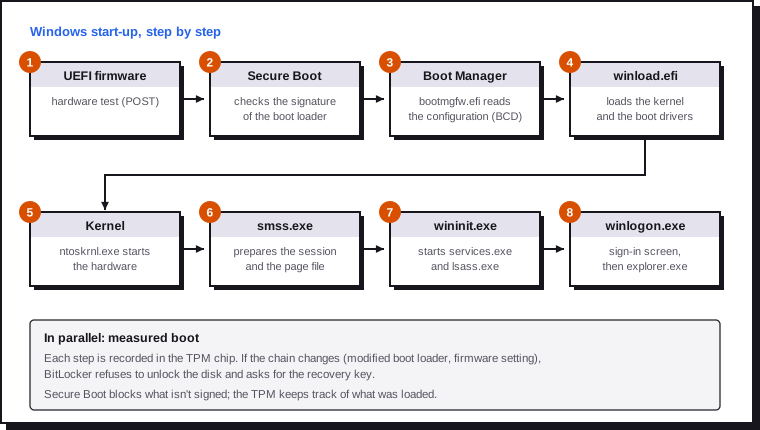
- UEFI firmware. The PC tests its hardware, then looks for a boot entry in the EFI system partition (a small hidden FAT32 partition).
- Secure Boot. The firmware checks that the boot loader is signed by a trusted authority listed in its certificate database. A boot loader modified by malware (a bootkit) is refused.
- Windows Boot Manager (
bootmgfw.efi) reads the Boot Configuration Data (BCD): which system to start, with which options. - winload.efi loads the kernel, the HAL, the registry's
SYSTEMhive and the drivers marked "boot". - The kernel initialises memory, processors and drivers, then starts the first user-mode process.
- smss.exe (Session Manager) creates the page file, environment variables and sessions.
- wininit.exe starts
services.exe(which starts the services) andlsass.exe(which handles authentication). - winlogon.exe shows the sign-in screen. Once the user is authenticated, the session loads and
explorer.exedisplays the desktop.
Measured boot. In parallel, every component loaded is "measured" (a hash is calculated) and recorded in the TPM chip. Secure Boot blocks what isn't signed; the TPM keeps track of what was loaded. BitLocker relies on these measurements: if the boot chain changes, the TPM refuses to release the key and Windows asks for the recovery key. That's why a BIOS update or a change to a firmware setting can trigger this prompt.
Observing your boot chain:
Step 1. Run msinfo32: the "BIOS Mode" line (should say UEFI) and "Secure Boot State" (On) sum up the situation.
Step 2. In an administrator PowerShell:
Confirm-SecureBootUEFI          # True if Secure Boot is active
Get-Tpm                         # presence and state of the TPM chip
bcdedit /enum                   # contents of the boot configuration
The 2011 Secure Boot certificates are expiring
The Microsoft certificate authorities used by Secure Boot since 2011 expire in 2026: in June for the KEK and the third-party UEFI authority, and on 19 October 2026 for the one that signs the Windows boot loader. They are being replaced by 2023 certificates, deployed by Windows Update and by manufacturers' firmware updates. A PC that isn't updated keeps booting, but no longer receives new boot protections (Boot Manager updates, revocation lists). Check that the new certificate is present:
[Text.Encoding]::ASCII.GetString(
  (Get-SecureBootUEFI db).bytes) -match 'Windows UEFI CA 2023'
True means the 2023 certificate is installed. Otherwise, apply the Windows updates and the BIOS updates offered by the manufacturer.
The Fast Startup trap. By default, "Shut down" doesn't really close Windows: the user session is closed, but the kernel and drivers are hibernated in hiberfil.sys, to speed up the next start-up. The consequence: a driver problem survives a shutdown, but not a restart, which reloads everything. For a genuine full shutdown:
shutdown /s /t 0
Fast Startup is turned off in Control Panel › Power Options › Choose what the power buttons do. Turn it off on a PC that dual-boots with Linux, as it leaves the Windows disk locked.
3. The system processes to know
Task Manager (Details tab) shows dozens of processes. These are normal and essential:
| Process | Role | Instances |
|---|---|---|
| System | The kernel and its internal tasks (PID 4) | 1 |
| Registry, Memory Compression | Registry cache, compressed memory | 1 each |
| smss.exe | Session Manager | 1 permanent |
| csrss.exe | Client/Server Runtime subsystem, one per session | 2 or more |
| wininit.exe | Initialisation of the system session (session 0) | 1 |
| services.exe | Service Control Manager | 1 |
| svchost.exe | Service host | Often more than 50 |
| lsass.exe | Authentication, security policy, tokens | 1 |
| winlogon.exe | Sign-in, lock, Ctrl+Alt+Del | 1 per session |
| dwm.exe | Desktop Window Manager: composition and effects | 1 per session |
| explorer.exe | Desktop, taskbar, File Explorer | 1 or more |
| MsMpEng.exe | Microsoft Defender Antivirus engine | 1 |
Spotting an impostor
Malware likes to imitate these names. A real system process runs from C:\Windows\System32 (except explorer.exe, in C:\Windows). In Task Manager, add the Command line column or right-click › Open file location. An svchost.exe in AppData or two copies of lsass.exe are warning signs.
4. Services
A service is a program that runs in the background, with no window, often before any user has even signed in: Windows Update, printing, networking, audio, backups.
The startup types (visible in services.msc):
| Type | Behaviour |
|---|---|
| Automatic | Starts with Windows |
| Automatic (Delayed Start) | Starts about two minutes after the others, to lighten start-up |
| Manual | Starts when a program or Windows asks for it |
| Manual (Trigger Start) | Starts on an event: a device plugged in, a network connection… |
| Disabled | Never starts, even if a program asks for it |
Why so many svchost.exe? Many services are libraries (DLLs) that need a host process. On a PC with enough memory, Windows gives each service its own svchost.exe: a service that crashes doesn't take the others down with it, and each one's consumption becomes visible.
Observing services:
# Running services
Get-Service | Where-Object Status -eq Running

# Details of a service (here Windows Update)
Get-CimInstance Win32_Service -Filter "Name='wuauserv'" |
  Select-Object Name, StartMode, State, ProcessId

# Which service runs in which svchost
tasklist /svc /fi "imagename eq svchost.exe"
Disabling services "to gain speed"
The lists of "useless" services circulating on the internet cause more breakdowns than they save time: on a modern PC, a stopped service consumes nothing. Only disable a service if you know exactly what it does and that you don't need it. The guide Mastering and optimising Windows 11 covers the settings that have a real effect.
Scheduled tasks (taskschd.msc) are the other big engine of background activity: automatic maintenance, defragmentation and SSD optimisation, telemetry, third-party software updates. Many programs install their own updater there.
5. The registry
The registry is Windows' configuration database: settings for the system, drivers, services, applications and each user. The regedit editor presents a unified view, but the data is stored in files called hives.
| Branch | Content | File on disk |
|---|---|---|
HKLM\SYSTEM |
Drivers, services, hardware configuration | C:\Windows\System32\config\SYSTEM |
HKLM\SOFTWARE |
Machine-wide software settings | C:\Windows\System32\config\SOFTWARE |
HKLM\SAM |
Local accounts and password hashes | C:\Windows\System32\config\SAM |
HKLM\SECURITY |
Local security policy | C:\Windows\System32\config\SECURITY |
HKCU |
Settings of the signed-in user | C:\Users\<name>\NTUSER.DAT |
HKCR |
File associations (merged view of HKLM + HKCU) | Composite |
HKLM(HKEY_LOCAL_MACHINE) covers the whole machine and needs administrator rights to be modified.HKCU(HKEY_CURRENT_USER) covers only the signed-in user.- Group Policy (local or Active Directory GPOs) writes its settings to
Policieskeys in the registry: editing these keys by hand amounts to applying a policy.
Back up before modifying:
reg export "HKCU\Software\MySoftware" "$env:USERPROFILE\Desktop\backup.reg"
Double-clicking the .reg file restores the key. For a significant change, also create a restore point.
6. Drivers
A driver is the translator between Windows and a device. Most run in kernel mode, hence their importance for stability.
- On 64-bit Windows, a kernel-mode driver must be signed by Microsoft to be loaded.
- Windows keeps every installed driver in a store:
C:\Windows\System32\DriverStore\FileRepository. That's what lets you go back to a previous version in Device Manager (devmgmt.msc, Driver › Roll Back Driver tab). - Windows maintains a vulnerable driver blocklist, of drivers known to be abused by attackers.
pnputil /enum-drivers                  # third-party drivers in the store
driverquery /v /fo table | more        # loaded drivers
As a rule, keep Windows Update's drivers for everyday use, and get those for critical components from the manufacturer's website: graphics card, chipset, network, as well as the BIOS.
7. Accounts, permissions and UAC
Each account has a unique identity: the SID. Names can change, the SID stays. File and registry permissions reference SIDs, not names.
whoami /user        # your SID
whoami /groups      # your groups and your integrity level
whoami /priv        # your privileges
SIDs ending in -500 designate the built-in Administrator account (disabled by default) and those ending in -501 the Guest account.
User Account Control (UAC). When an administrator signs in, Windows creates two tokens for them:
- a filtered token, with a standard user's rights, used for everything they launch;
- a full token, used only after the UAC confirmation window ("Do you want to allow this app…").
Each process also carries an integrity level: low (sandboxed browser), medium (normal applications), high (program run as administrator), system (services). A process can't modify a process with a higher level.
| Account type | Recommended use |
|---|---|
| Standard | Day-to-day: malware launched by mistake can't modify the system |
| Administrator | Installing, configuring; ideally a separate account |
| Microsoft account | Syncs settings and OneDrive, automatically backs up the BitLocker key online |
| Local account | No dependence on the cloud; remember to back up the BitLocker key yourself |
| Entra ID account | Work PC managed by the organisation |
8. The file system and folder tree
NTFS, the Windows file system, brings in particular:
- permissions (ACLs) on every file and folder (Security tab in Properties, or
icacls); - a journal that makes it possible to get back to a consistent state after a power cut;
- alternate data streams: that's where Windows writes the "Mark of the Web" (
Zone.Identifier) on downloaded files, which triggers the security warnings when they're opened.
Get-Item .\file.exe -Stream *                  # a file's streams
Get-Content .\file.exe -Stream Zone.Identifier # where it came from
Dev Drive, based on the ReFS file system, is a volume optimised for code and builds.
The folders to know:
| Folder | Content |
|---|---|
C:\Windows\System32 |
64-bit system programs and libraries |
C:\Windows\SysWOW64 |
32-bit system programs and libraries (the name is misleading) |
C:\Windows\WinSxS |
Component store: all versions of system files, used for updates and repairs |
C:\Program Files and (x86) |
64-bit and 32-bit software |
C:\ProgramData |
Shared software data (hidden folder) |
C:\Users\<name>\AppData\Local |
Machine-specific data: caches, local databases |
C:\Users\<name>\AppData\Roaming |
Settings that follow the user across a corporate network |
Never delete WinSxS by hand
The WinSxS folder looks huge because File Explorer counts several times files that exist only once on disk. To measure and clean up properly:
Dism /Online /Cleanup-Image /AnalyzeComponentStore
Dism /Online /Cleanup-Image /StartComponentCleanup
The page Freeing up disk space on Windows explains the other safe clean-ups.
9. The update rhythm
| Type | When | Content |
|---|---|---|
| Cumulative update | The second Tuesday of each month ("Patch Tuesday") | Security and reliability fixes; each update contains all the previous ones |
| Optional update (preview) | Towards the end of the month | Fixes and new features in advance, no security fixes |
| Annual version | Once a year, in the autumn | Resets the support period |
| Out-of-band update | In an emergency | Actively exploited vulnerability or serious bug |
For several versions now, Windows 11 has received its new features through the monthly updates, switched off. The annual version (26H2, released on 29 September 2026) is then just an enablement package: a small file that switches on the features already present and resets the support clock. The update is quick, with no full reinstall. Each version is supported for 24 months for consumer editions and 36 months for the Enterprise and Education editions.
winver                     # version and build
Get-HotFix | Sort-Object InstalledOn -Descending |
  Select-Object -First 5   # latest updates
Windows 10 has been unsupported since October 2025, and the Extended Security Updates programme for consumers ended in October 2026. A Windows 10 PC still connected to the internet should be migrated to Windows 11 or to another system.
10. Tools for observing Windows
| Tool | Command | What it shows |
|---|---|---|
| System Information | msinfo32 |
Hardware, firmware, Secure Boot, VBS, drivers |
| Task Manager | taskmgr |
Processes, performance, startup apps |
| Resource Monitor | resmon |
Disk, network and memory access per process |
| Performance Monitor | perfmon |
Detailed counters, diagnostic reports |
| Event Viewer | eventvwr.msc |
System, application and security logs |
| Services | services.msc |
Status and startup type of services |
| Task Scheduler | taskschd.msc |
Automatic tasks |
| Device Manager | devmgmt.msc |
Hardware and drivers |
| Registry Editor | regedit |
The registry |
| Process Explorer (Sysinternals) | Process tree, signatures, loaded DLLs: a far more complete Task Manager | |
| Autoruns (Sysinternals) | Everything that starts automatically: services, tasks, drivers, extensions | |
| Process Monitor (Sysinternals) | Every file, registry and network access, live |
The Sysinternals tools are free, published by Microsoft, and installed with winget install Microsoft.Sysinternals.Suite. Autoruns is the best starting point for understanding what slows down start-up or spotting an unwanted program.
The other guides in this series build on these foundations: optimisation, security, maintenance and repair, and the advanced toolbox. When the system is too damaged, the page Resetting Windows 11 remains the last resort.
Sources
- Microsoft: Secure Boot certificate expiration and certificate authority updates
- Microsoft Learn: overview of Windows components (user mode and kernel mode)
- Microsoft Learn: Windows 11 release information (release dates and end of servicing)
- Microsoft Learn: what's new in Windows 11, version 26H2 (enablement package)
- Microsoft Learn: Sysinternals tools