

Before you start
- For choosing a replacement SSD, see Choosing an SSD
In plain words
A desktop PC is a house where you can change the furniture as you like. A laptop is more like a custom-fitted camper van: everything is interlocked to save space, and some items are bolted to the floor, or even welded to the bodywork. You can still change quite a lot, provided you know what before you buy.
1. Why a laptop is less upgradeable
To gain thinness and battery life, manufacturers increasingly solder components directly onto the motherboard, or glue the battery and screen. A soldered component can't be replaced: if it fails, the whole motherboard is changed.
The level of repairability varies enormously from one model to another, even with the same manufacturer. Business ranges are generally much easier to open and upgrade than consumer ultrabooks.
2. Component by component
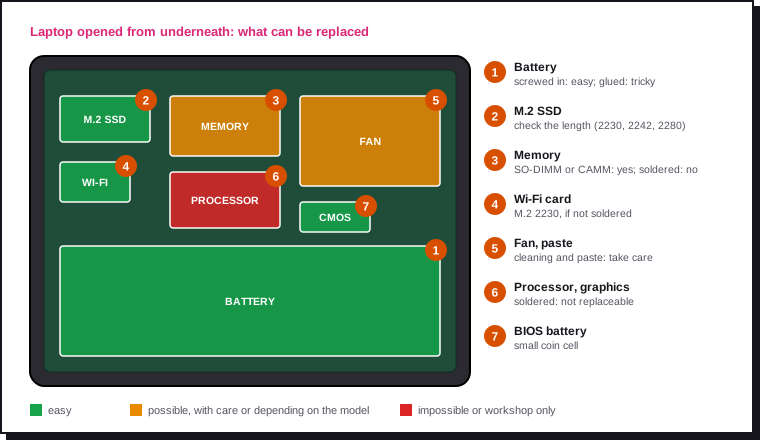
| Component | Replaceable? | Difficulty | Note |
|---|---|---|---|
| SSD | Yes, almost always | Easy | M.2 format; check the length |
| Battery | Yes | Easy if screwed in, tricky if glued | A wear part, the one most often replaced |
| Memory (RAM) | Depends on the model | Easy if modules | Increasingly often soldered |
| Wi-Fi card | Depends on the model | Easy | Small M.2 card, sometimes soldered |
| Fan, thermal paste | Yes | Medium | Useful maintenance on a laptop more than 3 years old |
| Keyboard | Yes | Easy to very difficult | Sometimes riveted to the palm rest |
| Screen (panel) | Yes | Medium | Identify the exact part number |
| Charging port | Depends on the model | Medium to difficult | Sometimes on a small daughterboard, sometimes soldered |
| Hinges | Yes | Medium | A wear part on heavily used laptops |
| BIOS (CMOS) battery | Yes | Easy | Coin cell, often connected by a small cable |
| Processor, graphics chip | No | Soldered to the motherboard |
3. Memory: modules, soldered or CAMM
This is the point to check before buying, because it fixes the amount of memory for the laptop's whole life.
| Type | Upgradeable? | Where you find it |
|---|---|---|
| SO-DIMM (DDR5 module) | Yes: one or two modules to replace | Business ranges, gaming laptops, thicker models |
| Soldered (LPDDR5X) | No | Ultrabooks, most consumer laptops, MacBooks |
| CAMM2 / LPCAMM2 | Yes: a flat, screwed-in module | A few recent high-end laptops and mobile workstations |
| Mixed | Partly: some soldered + one free slot | Some entry-level and mid-range models |
The LPCAMM2 format combines the fast, power-efficient memory of laptops (LPDDR5X) with a replaceable module. It's still rare: don't assume it, check the spec sheet.
Checking on your laptop:
On Windows. Open Task Manager (Ctrl + Shift + Esc), Performance › Memory tab: the "Slots used" line shows, for example, "2 of 2". In PowerShell:
Get-CimInstance Win32_PhysicalMemory |
  Format-Table DeviceLocator, Capacity, `
    Speed, FormFactor
A FormFactor of 12 corresponds to an SO-DIMM module.
On Linux. "Row Of Chips" indicates soldered memory:
sudo dmidecode -t memory \
  | grep -E "Locator|Size|Form Factor|Type:"
On macOS. On Apple silicon Macs, the memory is built into the chip: it's never upgradeable.
The documentation is the authority
The surest way is still the service manual for the exact model, which most major manufacturers publish freely. It gives the maximum memory, the number of slots and the SSD formats accepted.
4. Storage
The SSD is the simplest and most cost-effective upgrade on a laptop.
- It's almost always an M.2 NVMe SSD. Check the accepted length: 2280 (the most common), 2242 or 2230 on compact models.
- Some laptops have a free second M.2 slot: you can then add an SSD without removing the old one.
- To keep the system, clone the old SSD onto the new one using an M.2 USB enclosure, or do a clean reinstall.
- On Apple silicon MacBooks, storage is soldered: only an external USB-C or Thunderbolt SSD lets you add more.
The details of the formats are in Choosing an SSD.
5. The battery
The battery is a wear part: it loses capacity with every charge cycle. After 500 to 1,000 cycles, it's not unusual for it to hold only 70 to 80% of its original capacity.
Measuring its wear:
On Windows. The report compares the "Design Capacity" (original capacity) and the "Full Charge Capacity" (current capacity):
powercfg /batteryreport `
  /output "$env:USERPROFILE\Desktop\battery.html"
On Linux. Compare energy-full and energy-full-design, and look at the capacity line:
upower -i $(upower -e | grep BAT)
On macOS. Open System Settings › Battery, then the battery health information, or in Terminal:
system_profiler SPPowerDataType \
  | grep -E "Cycle Count|Condition|Maximum Capacity"
Replacing the battery:
- Screwed in: a few screws and a connector, the operation is simple.
- Glued: you have to unstick the battery carefully, often with isopropyl alcohol or the pull tabs provided for the purpose. Never puncture or bend a battery.
- Buy the exact part number (printed on the battery or in the service manual), from the manufacturer or a reputable parts dealer.
Swollen battery
A touchpad that lifts, a cover that warps or a keyboard that bulges signal a swollen battery. Stop using and charging the device, don't leave it unattended, and have the battery replaced quickly. Never puncture it, and take the old one to a collection point: never put it in the bin.
Extending its life: most manufacturers offer a charge limit (at 80%, for example) in their utility or in the BIOS. For a laptop permanently plugged in at the office, it's the most effective setting.
What European regulation changes: the European Batteries Regulation (2023/1542) requires that from 18 February 2027, portable batteries built into devices sold in the EU can be removed and replaced by the user, with commercially available tools and without solvents or heat. Exceptions exist (devices used in wet environments, need for a continuous power supply), and phones and tablets follow specific rules. The concrete effect on each laptop range will depend on how manufacturers apply it.
6. Cooling
A laptop that runs hot, makes noise or slows down after a few minutes often suffers from clogged cooling: dust blocks the heatsink and the thermal paste dries out over the years.
Dusting, every one to two years:
- Shut the laptop down completely and unplug the charger.
- Blow air (compressed air can or electric blower) into the vents, in short bursts.
- Hold the fan still with a toothpick while blowing: spinning it too fast can damage it.
Replacing the thermal paste means removing the heatsink. It's worthwhile on a laptop more than three or four years old that runs abnormally hot. Follow the service manual, clean off the old paste with isopropyl alcohol, and replace any thermal pads with ones of exactly the same thickness.
7. Keyboard, screen, ports and hinges
- Keyboard: depending on the model, it's replaced with a few screws from underneath, or it's riveted to the palm rest (you then replace the whole assembly). On some models, an external USB keyboard remains the simplest solution.
- Screen: note the exact part number of the panel (printed on the back, or shown by a system information tool). Size, resolution, connector and refresh rate must match.
- Charging port: on recent laptops, charging often goes through USB-C. If a charging USB-C port soldered to the motherboard is damaged, the repair needs a workshop equipped for micro-soldering.
- Hinges: they wear with opening and closing. A cracking hinge gradually damages the lid and the screen cable: have it repaired early.
8. Before opening your laptop
| Item | Done? |
|---|---|
| Data backup up to date | ☐ |
| Service manual for the exact model downloaded | ☐ |
| Warranty conditions checked (some manufacturers require an authorised repairer) | ☐ |
| Laptop fully shut down (not asleep), charger unplugged | ☐ |
| Suitable precision screwdrivers (Phillips, Torx depending on the model) and a plastic opening tool | ☐ |
| Screws kept in disassembly order (their lengths often differ) | ☐ |
| Battery disconnected from the motherboard before any work | ☐ |
| Photos taken before unplugging each ribbon cable | ☐ |
Ribbon cables are fragile
Flat cables (ribbons) are released by lifting a small latch on the connector, never by pulling on the ribbon. A torn ribbon cable can put the laptop out of action.
9. Before buying: the repairability criteria
A few questions before buying avoid a laptop that's disposable after three years.
| Criterion | What to look for |
|---|---|
| Memory | SO-DIMM modules or a CAMM module, or else enough soldered memory for the whole expected lifespan |
| Storage | M.2 SSD in the 2280 format, ideally a free second slot |
| Battery | Screwed in rather than glued |
| Opening | Bottom cover held by standard screws, no glue |
| Documentation | Public service manual, spare parts sold by the manufacturer |
| Score | A repairability index where one exists (France, for example, displays one on laptops): the higher, the better |
| Teardowns | Disassemblies and repair guides published by specialist sites (iFixit, for example) |
A few manufacturers design modular laptops, where almost every part can be replaced (ports, keyboard, screen, motherboard), with official guides. They remain a niche, but they show that a thin laptop can be repairable.
10. Replace a part or change laptop?
| Situation | Recommended action |
|---|---|
| Slow laptop, mechanical hard drive | Replace it with an SSD: the gain is spectacular |
| Memory maxed out, modules accessible | Add or replace the modules |
| Memory maxed out and soldered | Lighten the load (tabs, startup apps) or consider a replacement |
| Battery life greatly reduced | Replace the battery |
| Noise, heat, slowdowns under load | Dust it, then replace the thermal paste |
| Faulty keys | Replace the keyboard, or use an external keyboard |
| Motherboard failure out of warranty | Compare the cost of a workshop repair with a new or refurbished laptop |
Before throwing away a laptop that no longer starts, the page PC won't start helps identify the part at fault.