

Before you start
- Having read understanding firewalls, whose plan and flow matrix this tutorial follows
- A recent UniFi gateway (Cloud Gateway Ultra, Max or Fiber, Dream Machine Pro or SE, or a standalone gateway) with the Network application 9.0 or later, a UniFi switch and UniFi access points
- The internet provider's router in bridge mode, or its DMZ pointing to the gateway
In plain words
With UniFi, the whole infrastructure (gateway, switches, Wi-Fi access points) is managed from a single interface. You declare a network once, and it's available everywhere: on the switch ports, on the access points, in the firewall. The firewall works by zones: you put each network into a zone according to its trust level, then fill in a table that says, for each pair of zones, what is allowed. It's exactly the flow matrix from the firewall guide.
Reference version: UniFi Network 10 (10.6 presented in August 2026). The zone-based firewall has existed since version 9.0; some menus moved between 9.3, 9.4 and 10. They're given here for version 10, with the 9.x equivalent where it differs. The interface is in English by default.
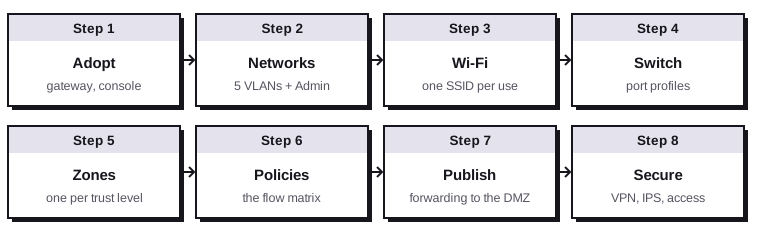
1. The plan
The same as for the OPNsense tutorial, so you can compare:
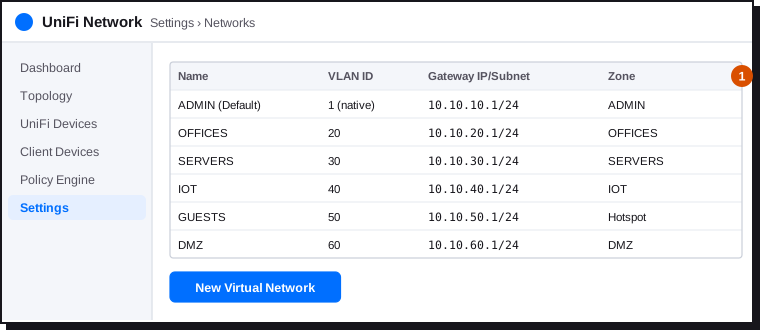
| Network | VLAN | Gateway | UniFi zone | Note |
|---|---|---|---|---|
| ADMIN | native (untagged) | 10.10.10.1/24 |
ADMIN (custom) | "Default" network renamed: UniFi devices are managed on it |
| OFFICES | 20 | 10.10.20.1/24 |
OFFICES (custom) | |
| SERVERS | 30 | 10.10.30.1/24 |
SERVERS (custom) | Static addresses |
| IOT | 40 | 10.10.40.1/24 |
IOT (custom) | |
| GUESTS | 50 | 10.10.50.1/24 |
Hotspot (built-in) | Guest-type network |
| DMZ | 60 | 10.10.60.1/24 |
DMZ (built-in) | Static addresses |
| Remote-user VPN | — | 10.10.99.1/24 |
VPN (built-in) | Section 9 |
Why custom zones? Networks placed in the built-in Internal zone can all communicate with each other. A zone you create blocks traffic to the other zones by default: by putting each network in its own zone, you start from "everything blocked" and only open what's needed.
2. Adopt the gateway
- Connect the gateway to the internet router (WAN port) and a computer to a LAN port.
- Follow the wizard in the UniFi app on your phone or in the browser. It offers to link the console to a UI account (remote access, cloud backups) or to create a local account only.
- Configure the WAN in Settings › Internet: DHCP for most routers in bridge mode, PPPoE if the provider requires it. Some fibre providers need specific settings (VLAN, DHCP options) to connect without their own router: follow your provider's documentation.
- Update the console and the Network application (UniFi OS › Settings › Updates), then adopt the switch and the access points: they appear in UniFi Devices.
The console account
The owner account has full rights over the whole network. Enable two-factor authentication on the UI account, use a unique password, and create named accounts for the other administrators (UniFi OS › Admins & Users) with only the roles they need.
Don't lock yourself out
Changing the ADMIN network's address, a port's profile or a policy towards the Gateway zone can disconnect your computer from the console. Work from a wired computer on a port of the ADMIN network, never change the profile of the port you're plugged into, and download a backup (UniFi OS › Settings › Backups) before you start.
3. Create the networks
The Default network already exists (VLAN 1, untagged, 192.168.1.0/24). Edit it first in Settings › Networks: name ADMIN, Gateway IP/Subnet 10.10.10.1/24. Then reconnect at the new address.
Create the other networks with New Virtual Network.
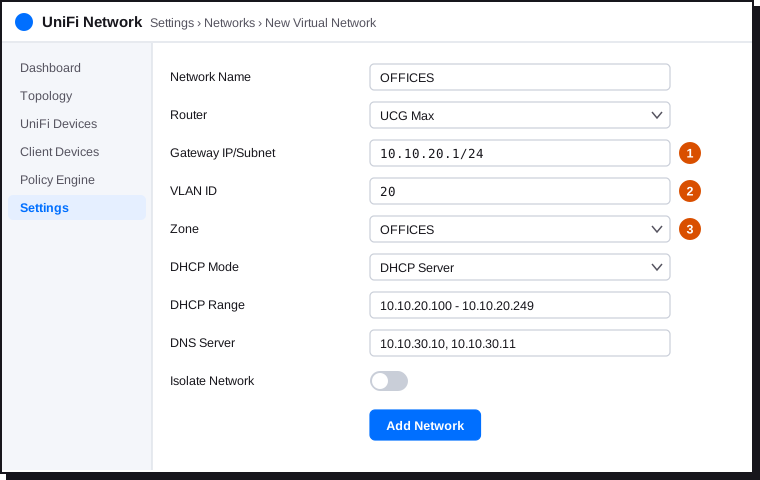
| Network | Specific settings |
|---|---|
| OFFICES | DNS Server: the domain controllers 10.10.30.10 and 10.10.30.11 if you have a domain (see creating an Active Directory domain) |
| SERVERS, DMZ | DHCP Mode: None, static addresses on the servers |
| GUESTS | Tick the Guest Network option (or choose guest use): the network is placed in the Hotspot zone |
| IOT | Normal DHCP; reserve the cameras' addresses in Client Devices (the device's page › Fixed IP Address) |
Leave Isolate Network off: this option creates automatic blocks that are hard to read. Isolation will be handled properly with zones.
The custom zones ADMIN, OFFICES, SERVERS and IOT don't exist yet: create the networks first, then the zones in step 6, and attach the networks to them at that point.
4. One Wi-Fi per use
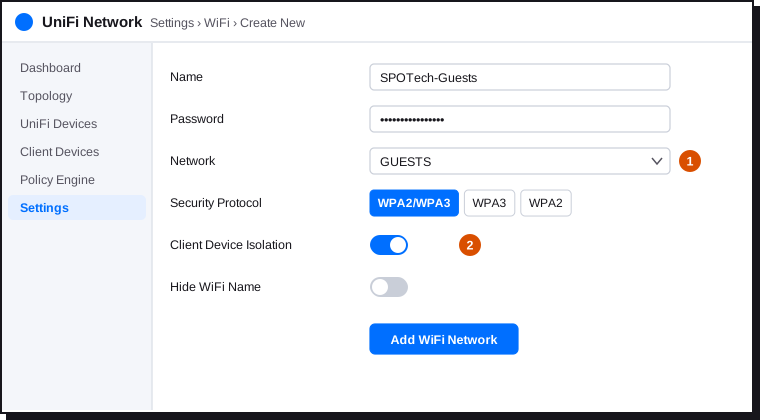
Settings › WiFi › Create New. Three Wi-Fi networks are usually enough:
| Wi-Fi name (SSID) | Network | Security | Options |
|---|---|---|---|
SPOTech |
OFFICES | WPA2/WPA3 Personal, or Enterprise (802.1X) with a RADIUS server if you have a directory | |
SPOTech-Devices |
IOT | WPA2 (many smart devices don't support WPA3), 2.4 GHz band only if necessary | Can be hidden |
SPOTech-Guests |
GUESTS | WPA2/WPA3 | Client Device Isolation on: guests can't see each other |
Avoid multiplying SSIDs: each one uses airtime. Beyond four per access point, performance drops.
5. Switch ports
In UniFi Devices, open the switch, then Port Manager. Select one or more ports and set the Native VLAN / Network (the untagged network) and Tagged VLAN Management (the tagged networks allowed).
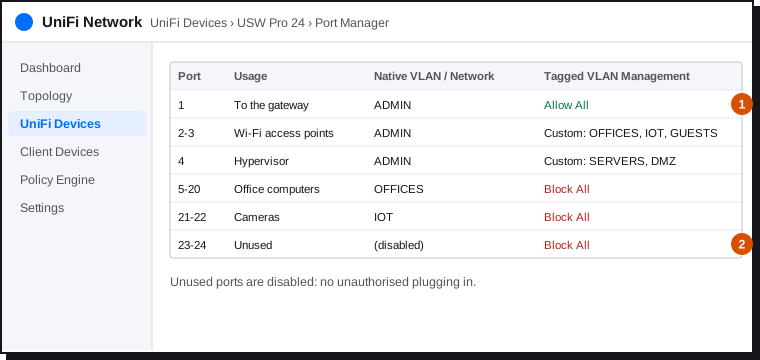
- Allow All on a workstation port would let any device send tagged traffic into any VLAN: keep it for links between network devices.
- On computer ports, set the tagged VLANs to Block All.
- Disable unused ports (Port Manager › Disable), or assign them to a network with no access.
See understanding VLANs for tagged and untagged ports.
6. Zones
Create the custom zones
In Policy Engine › Zones (in 9.4: Settings › Zones; in 9.3: Settings › Policy Engine › Zones), click Create Zone for each one: ADMIN, OFFICES, SERVERS, IOT. In each zone, select the matching network. A network belongs to only one zone.
Built-in zones, marked with a padlock, can't be deleted:
| Built-in zone | Contents |
|---|---|
| External | The internet (the WAN) |
| Gateway | The gateway itself: its interface, its DNS, its DHCP |
| Internal | Default zone for new networks, with no isolation between them |
| Hotspot | Guest networks |
| DMZ | Servers published on the internet |
| VPN | VPN clients and tunnels |
Reading the matrix
The Zone Matrix shows one row per source zone and one column per destination zone. Each cell shows the status: Allow All, Block All, Allow Return Traffic or the number of Policies defined.
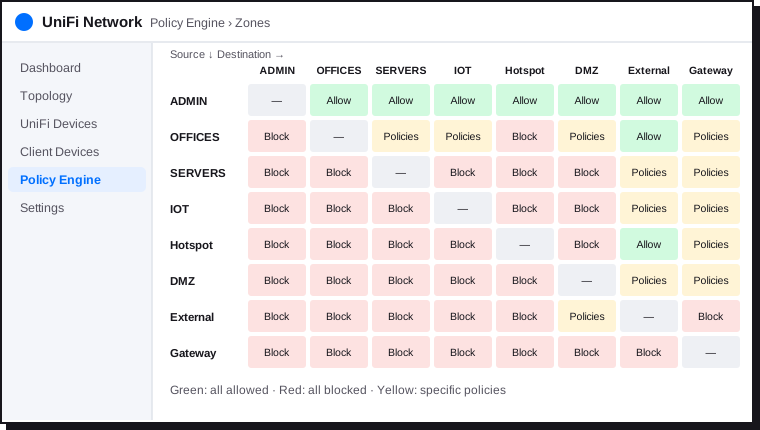
Click a cell to see the corresponding policies and add some. Check every cell after creating the zones: if a cell that should be blocked shows Allow All, add a Block policy for that pair of zones.
7. Policies
Create each policy from the matrix cell, or from Policy Engine › Policy Table › Create New Policy (in 9.x: Settings › Policy Table), type Firewall.
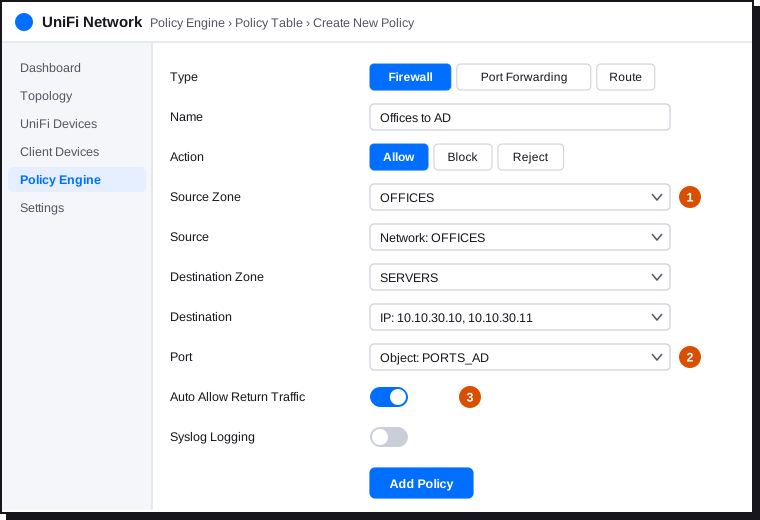
Reusable objects. First create the address and port lists (the equivalent of aliases), in Policy Engine › Objects or in Network Lists depending on the version: PORTS_AD (53, 88, 123, 135, 389, 445, 464, 636, 3268-3269, 49152-65535), PORTS_WEB (80, 443), SRV_AD (10.10.30.10, 10.10.30.11).
The policies to create, in order:
| Source | Destination | Action | Detail | Role |
|---|---|---|---|---|
| ADMIN | all zones | Allow | Any | Administrators go everywhere |
| OFFICES | Gateway | Allow | Ports 53, 67, 123 | The gateway's DNS, DHCP, NTP |
| OFFICES | Gateway | Block | Any | No access to the console interface |
| OFFICES | SERVERS | Allow | SRV_AD, PORTS_AD |
Active Directory domain |
| OFFICES | SERVERS | Allow | 10.10.30.20, port 445 |
File shares |
| OFFICES | DMZ | Allow | 10.10.60.10, PORTS_WEB |
Internal website |
| OFFICES | IOT | Allow | Camera addresses, port 443 | Viewing the cameras (never the other way round) |
| OFFICES | External | Allow | Any | Internet |
| SERVERS, IOT, DMZ | Gateway | Allow | Ports 53, 67, 123 | DNS, DHCP, NTP |
| SERVERS, IOT, DMZ | Gateway | Block | Any | |
| SERVERS, DMZ | External | Allow | PORTS_WEB, port 123 |
Updates |
| IOT | External | Allow | PORTS_WEB (tighten device by device) |
The devices' online services |
| Hotspot | Gateway | Allow | Ports 53, 67 | DNS and DHCP |
| Hotspot | Gateway | Block | Any | |
| Hotspot | External | Allow | Any | Internet only |
Points to watch:
- Order matters: within a cell, the allow must be above the block ("Allow DNS" before "Block Gateway"). Use Reorder to adjust.
- Never block the Gateway zone without allowing DNS and DHCP just before: devices would lose their address and name resolution.
- Auto Allow Return Traffic must stay on for allow policies: it lets replies back in (stateful filtering).
- Enable Syslog Logging on blocks between internal zones to spot abnormal attempts (sent to a syslog server declared in Integrations).
- For IOT, the Destination tab of the External zone also lets you filter by application, domain or country: useful for a camera that should only talk to its manufacturer's service.
8. Publishing a server in the DMZ
In Policy Engine › Policy Table › Create New Policy, choose the Port Forwarding type (in 9.x: Settings › Routing › Port Forwarding).
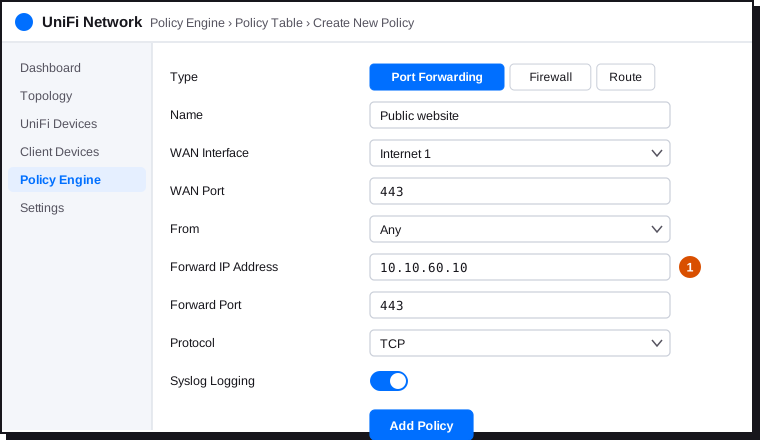
- From: Any for a public website, or Limited to allow only certain addresses (a partner, for example).
- UniFi automatically creates a read-only External → DMZ allow policy. To restrict further, add your own block policies above it.
- To reach the site from inside by its public name, create a local DNS entry (Policy Engine › DNS or Settings › Routing › DNS depending on the version) that points
www.example.comto10.10.60.10.
9. Securing
WireGuard VPN for remote users
Settings › VPN › VPN Server › Create New, type WireGuard.
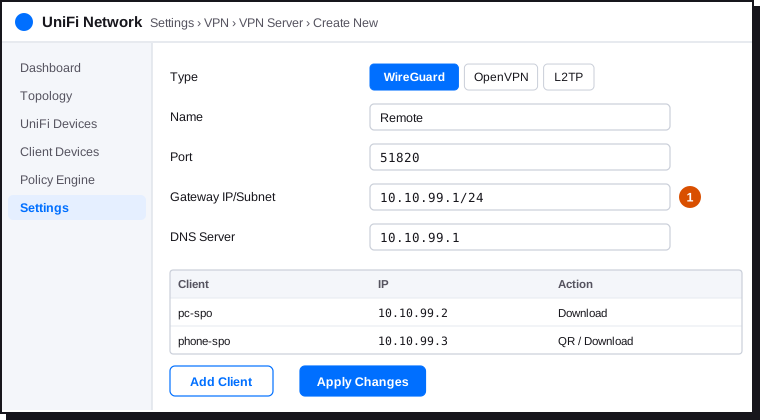
- Name
Remote, port51820, network10.10.99.1/24(it must not overlap any existing network). - Add Client for each device, then download the configuration and import it into the WireGuard app.
- If the public address changes, use a dynamic DNS name (Settings › Internet › Dynamic DNS) as the endpoint.
- UniFi opens the VPN port on the internet side itself. Connected clients land in the VPN zone: check its row in the matrix and restrict it (VPN → SERVERS on the needed ports, VPN → ADMIN for administrators only).
See also remote access and the VPN principle in the OPNsense tutorial.
Intrusion prevention
Settings › CyberSecure: enable intrusion detection and prevention (IDS/IPS) in prevention mode on the WAN, with the categories offered. On small gateways, IPS reduces maximum throughput: check your model's datasheet.
The console itself
- SSH disabled, or protected by a strong password and kept for interventions (UniFi OS › Settings › Control Plane › Console).
- Remote access through the UI account: keep it only if you need it, with two-factor authentication on. Otherwise, go through the VPN.
- Automatic backups (UniFi OS › Settings › Backups), and regularly download a backup off the console.
- Updates: enable them for fixes, and read the release notes before major versions of the Network application.
10. Test
| From | Test | Expected result |
|---|---|---|
| OFFICES | Open a website | Works |
| OFFICES | Open the console interface (https://10.10.20.1) |
Fails |
| OFFICES | Test-NetConnection 10.10.30.20 -Port 445 |
Succeeds |
| Guest Wi-Fi | Reach 10.10.20.1 or another guest |
Fails |
| IOT | Reach a computer in OFFICES | Fails |
| DMZ | Reach 10.10.30.10 |
Fails |
| Internet (4G) | https://www.example.com |
The DMZ website answers |
| VPN | Reach an allowed server, then a computer in OFFICES | The first succeeds, the second fails |
Blocked and allowed flows are visible in Insights or in the gateway's logs if logging is enabled on the policies.
11. UniFi or OPNsense?
| Criterion | UniFi | OPNsense |
|---|---|---|
| Getting started | Very simple, one interface for everything (gateway, switches, Wi-Fi) | More technical, interface dedicated to the firewall |
| Ecosystem | Switches, access points, cameras and access control from the same brand | Firewall only; switches and access points of your choice |
| Filtering granularity | Good with zones and objects; fewer advanced levers | Very fine: aliases, floating rules, policy-based routing, plug-ins (HAProxy, Zenarmor, ACME…) |
| VPN | WireGuard, OpenVPN, Site Magic between UniFi sites | WireGuard, IPsec, OpenVPN, every scenario |
| Hardware | The brand's own appliances | Your choice: mini PC, server, virtual machine |
| Licence | Proprietary software, included with the hardware | Open source (BSD licence) |
Both apply the same principles: an addressing plan, a flow matrix, blocking by default. What matters is how rigorous the configuration is, more than the brand.
12. Checklist
| Item | Done? |
|---|---|
| Console up to date, owner account with two-factor authentication, named accounts for the other administrators | ☐ |
Default network renamed ADMIN at 10.10.10.1/24 |
☐ |
| OFFICES, SERVERS, IOT, GUESTS, DMZ networks created with their VLAN | ☐ |
| One Wi-Fi per use, client isolation on the guest Wi-Fi | ☐ |
| Switch ports: trunk limited to links between network devices, Block All on computers, unused ports disabled | ☐ |
| Custom zones created, each network in the right zone | ☐ |
| Policies match the flow matrix, allows before blocks | ☐ |
| Access to the console blocked from every zone except ADMIN and VPN | ☐ |
| Forwarding limited to the DMZ server | ☐ |
| WireGuard VPN working, VPN zone restricted | ☐ |
| IPS enabled, backup downloaded off the console | ☐ |
| Tests carried out from each zone | ☐ |