

Before you start
- Having read understanding firewalls, whose plan and flow matrix this tutorial follows
- An appliance or a virtual machine with at least two network cards, and a managed switch (802.1Q VLANs)
- The internet provider's router in bridge mode, or its DMZ pointing to the firewall
In plain words
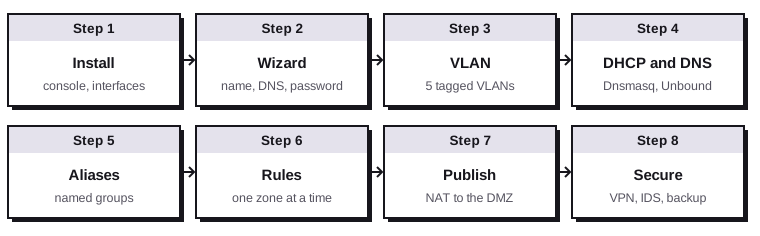
OPNsense is a free, open source firewall, based on FreeBSD, that turns a small PC with several network ports into professional-grade equipment. This tutorial configures it step by step, the way you'd put up a block of flats: the foundations (installation), the walls between the flats (VLANs), the addresses and the directory (DHCP, DNS), then the house rules (firewall rules), the public front door (DMZ) and the residents' badge for when they're away (VPN).
Version used: OPNsense 26.7, released in July 2026 (26.7.7 on 20 October 2026). Menus are given in English, the interface's default language.
1. What you need
| Item | Recommendation |
|---|---|
| Hardware | Mini PC with at least 2 network ports (4 is better), preferably Intel cards (igc, igb, ix), 8 GB of RAM, SSD of 64 GB or more. Plan for 16 GB if you enable intrusion detection on a fast connection. |
| Or a VM | On Proxmox, two VirtIO cards, one connected to the bridge on the router side, the other to a VLAN aware bridge on the switch side (see installing Proxmox VE). |
| Switch | Managed, 802.1Q VLAN compatible |
| Image | From opnsense.org, the dvd image (ISO) for a VM, vga for a USB stick. Check the SHA-256 checksum provided. |
The addressing plan, taken from the firewall guide:
| Zone | VLAN | OPNsense interface | Firewall address |
|---|---|---|---|
| WAN | — | igc0 |
public address (router in bridge mode) |
| ADMIN | untagged | igc1 |
10.10.10.1/24 |
| OFFICES | 20 | vlan0.20 on igc1 |
10.10.20.1/24 |
| SERVERS | 30 | vlan0.30 on igc1 |
10.10.30.1/24 |
| IOT | 40 | vlan0.40 on igc1 |
10.10.40.1/24 |
| GUESTS | 50 | vlan0.50 on igc1 |
10.10.50.1/24 |
| DMZ | 60 | vlan0.60 on igc1 |
10.10.60.1/24 |
The ADMIN network runs untagged on igc1: it's OPNsense's original LAN network, renamed. On the switch side, it matches native VLAN 10 on the port connected to the firewall. This way, you always keep access to the interface while creating the VLANs.
2. Install
- Boot from the image. At the login prompt, enter the user
installerand the passwordopnsense. - Choose the keyboard layout, then Install (ZFS): ZFS is the recommended choice, more robust against power cuts.
- Select the disk, confirm it will be erased.
- Set the root password: long, unique, kept in your password manager.
- Remove the installation media and restart.
Don't lock yourself out
Installation erases the chosen disk completely. Afterwards, every interface or rule change can cut off access to the interface or to the internet. Work from a wired computer on the ADMIN network, outside working hours, and download a backup of the configuration (System › Configuration › Backups) before every major step: if something goes wrong, you just restore it.
On first boot, the console offers a menu. If the cards weren't detected in the right order, choose 1) Assign interfaces, and enter igc0 for the WAN (towards the router) and igc1 for the LAN (towards the switch). Answer N to the questions about LAGGs and VLANs: we'll create the VLANs in the web interface.
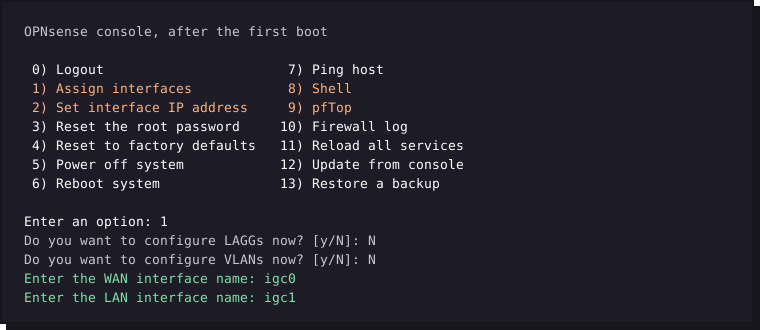
By default, the LAN answers on 192.168.1.1. Change it right away with 2) Set interface IP address: choose LAN, address 10.10.10.1, mask 24, no gateway, and agree to enable the DHCP server on the LAN (range 10.10.10.100 to 10.10.10.199) to get an address on your administration computer.
Plug your computer into the ADMIN network and open https://10.10.10.1. Accept the self-signed certificate warning and log in as root.
3. The setup wizard
The wizard starts at the first login (otherwise: System › Wizard).
| Screen | Setting | Recommended value |
|---|---|---|
| General | Hostname / Domain | fw01 / lan.example.com |
| General | DNS servers | Leave empty: Unbound will query the root servers directly. Or enter resolvers of your choice. |
| Time server | Time zone | Your time zone, for example Europe/London |
| WAN | Type | DHCP for most routers in bridge mode; PPPoE if your provider requires it (credentials supplied by the provider) |
| WAN | Block RFC1918 Private Networks | Ticked… unless your WAN gets a private address from the router (double NAT): untick it then, or nothing will get through |
| WAN | Block bogon networks | Ticked |
| LAN | Address | Already set: 10.10.10.1/24 |
| Root password | Already set during installation; leave empty to keep it |
Then:
- Rename the LAN: Interfaces › [LAN], Description field:
ADMIN. Save and apply. - Update: System › Firmware › Status › Check for updates, then install and restart if asked.
4. Create the VLANs
Declare the VLANs
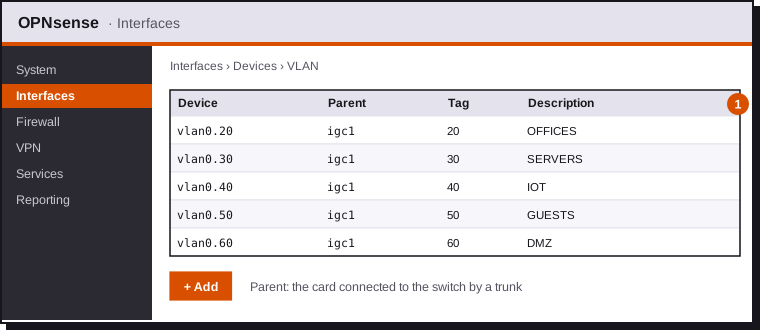
In Interfaces › Devices › VLAN, click + for each VLAN: Parent igc1, VLAN tag 20, 30, 40, 50 then 60, and a Description.
Assign and address each VLAN
- Interfaces › Assignments: in the "New interface" list, choose
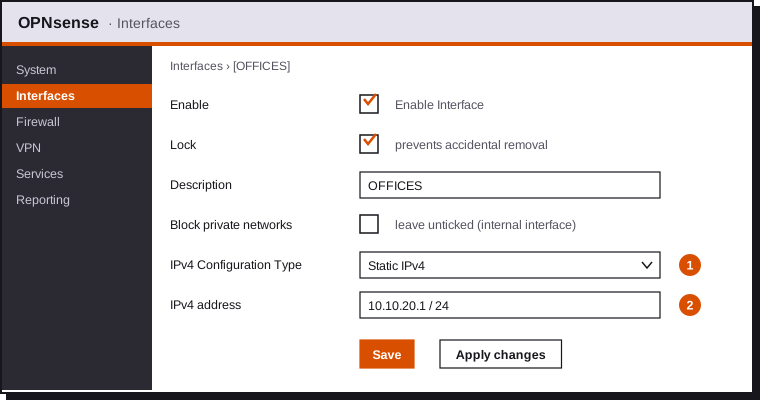
vlan0.20, enter the descriptionOFFICES, click +, then Save. Repeat for each VLAN. - Open each new interface (menu Interfaces › [OFFICES]…) and configure it as below, with the address from the table in section 1.
Configure the switch
| Switch port | Mode | Untagged (native) VLAN | Tagged VLANs |
|---|---|---|---|
To OPNsense (igc1) |
Trunk | 10 (ADMIN) | 20, 30, 40, 50, 60 |
| Wi-Fi access points | Trunk | 10 (access point management) | 20, 40, 50 (one SSID per VLAN) |
| Hypervisor | Trunk | 10 | 30, 60 |
| Office computers | Access | 20 | — |
| Cameras | Access | 40 | — |
| Switch management interface | — | VLAN 10 | — |
See understanding VLANs for the difference between tagged and untagged ports.
5. DHCP and DNS
Since version 26.1, Dnsmasq is the default DHCP server on new installations, and Unbound remains the DNS.
DHCP with Dnsmasq
- Services › Dnsmasq DNS & DHCP › General: tick Enable, select in Interface the interfaces that will hand out addresses, tick DHCP fqdn so that device names are registered, and set Listen port to
53053to leave port 53 to Unbound. - Services › Dnsmasq DNS & DHCP › DHCP ranges: one range per interface.
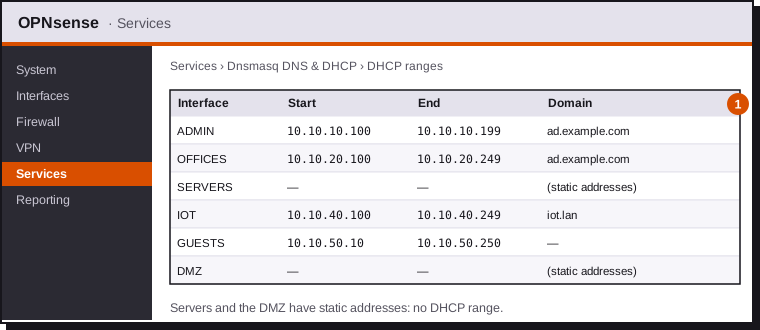
- Reservations for devices that must keep the same address (printers, cameras): Services › Dnsmasq DNS & DHCP › Hosts, with the name, IP address and MAC address.
- If you have an Active Directory domain, the computers in the OFFICES VLAN must use the domain controllers as DNS. In Services › Dnsmasq DNS & DHCP › DHCP options, add the dns-server [6] option on the OFFICES interface, with the value
10.10.30.10,10.10.30.11. See creating an Active Directory domain.
DNS with Unbound
Services › Unbound DNS › General: tick Enable, choose in Network Interfaces all the internal interfaces (not the WAN), and tick Enable DNSSEC Support.
- To resolve the names of devices registered by Dnsmasq, add in Services › Unbound DNS › Query Forwarding the domain
lan.example.comto the server127.0.0.1, port53053. - To encrypt queries to the internet, declare resolvers in Services › Unbound DNS › DNS over TLS.
- Blocklists (ads, malware) are enabled in Services › Unbound DNS › Blocklist.
6. Aliases
Aliases give a name to groups of addresses or ports. Create them in Firewall › Aliases before writing the rules.
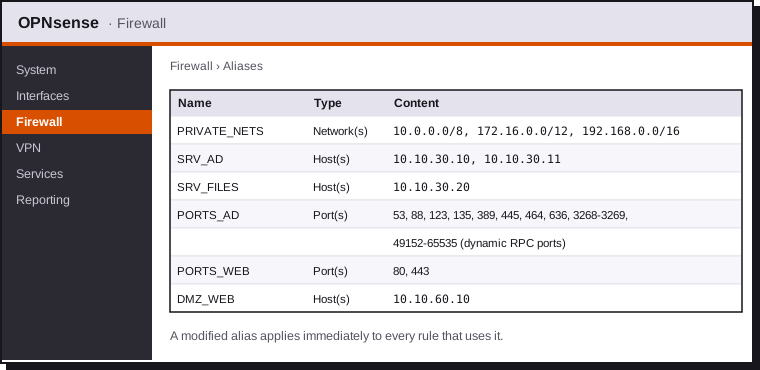
| Alias | Type | Use |
|---|---|---|
PRIVATE_NETS |
Network(s) | Used inverted to mean "internet only" |
SRV_AD |
Host(s) | The domain controllers |
SRV_FILES |
Host(s) | The file server |
PORTS_AD |
Port(s) | The ports Active Directory needs (DNS, Kerberos, LDAP, SMB, RPC…) |
PORTS_WEB |
Port(s) | HTTP and HTTPS |
DMZ_WEB |
Host(s) | The web server in the DMZ, 10.10.60.10 |
7. Rules, zone by zone
How OPNsense reads rules
- Rules are written on the interface through which the traffic enters: to filter what the computers are allowed to do, you write in the OFFICES tab.
- They are evaluated from top to bottom, and the first one that matches applies. Anything no rule allows is blocked.
- This Firewall means all the firewall's own addresses, including its WAN address.
- Since version 26.7, the Firewall › Rules page is the new (MVC) interface: a selector shows the rules of one interface. After each change, click Apply.
OFFICES
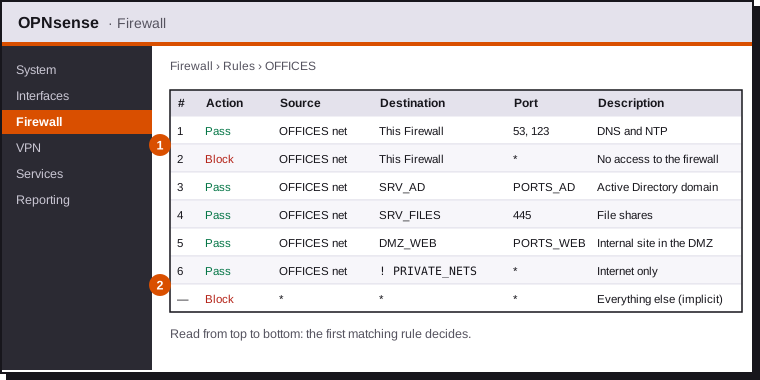
Rule 2 stops the computers from reaching the firewall's admin interface, including through its public WAN address, which rule 6 would otherwise let through.
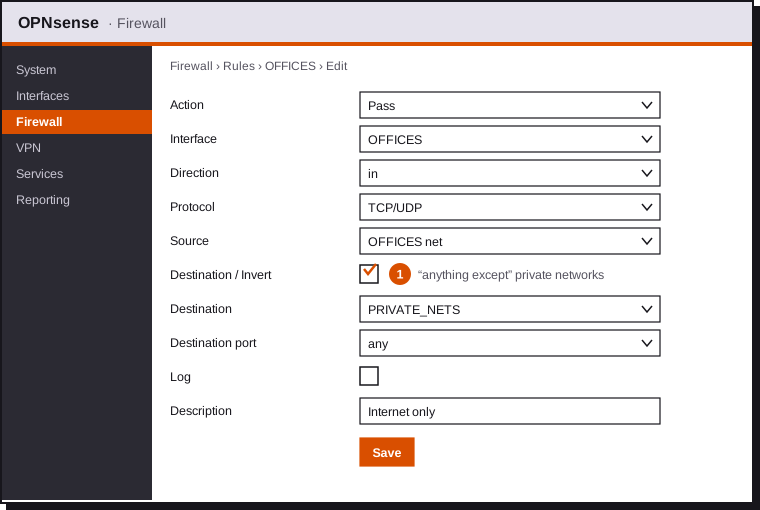
Rule 6 is the most important one to get right: destination PRIVATE_NETS with the Invert box ticked, in other words "anything except private networks".
The other zones
Same logic for each interface. [zone] net means the interface's network, [zone] address the firewall's address on that interface.
| Interface | # | Action | Source | Destination | Port | Role |
|---|---|---|---|---|---|---|
| ADMIN | 1 | Pass | ADMIN net | any | any | Administrators go everywhere |
| SERVERS | 1 | Pass | SERVERS net | This Firewall | 53, 123 | DNS and NTP |
| 2 | Block | SERVERS net | This Firewall | any | ||
| 3 | Pass | SERVERS net | ! PRIVATE_NETS | PORTS_WEB | Updates | |
| IOT | 1 | Pass | IOT net | This Firewall | 53, 123 | DNS and NTP |
| 2 | Block | IOT net | This Firewall | any | ||
| 3 | Pass | IOT net | ! PRIVATE_NETS | PORTS_WEB | The devices' online services; tighten device by device | |
| GUESTS | 1 | Pass | GUESTS net | GUESTS address | 53 | DNS |
| 2 | Block | GUESTS net | This Firewall | any | ||
| 3 | Pass | GUESTS net | ! PRIVATE_NETS | any | Internet only | |
| DMZ | 1 | Pass | DMZ net | DMZ address | 53, 123 | DNS and NTP |
| 2 | Block | DMZ net | This Firewall | any | ||
| 3 | Pass | DMZ net | ! PRIVATE_NETS | PORTS_WEB | Updates | |
| WAN | 1 | Pass | any | DMZ_WEB | 443 | Published website (section 8) |
| 2 | Pass | any | WAN address | UDP 51820 | WireGuard VPN (section 9) |
Everything else is blocked by the implicit rule: SERVERS, IOT, GUESTS and DMZ cannot open any connection to the other internal networks.
DHCP rules are automatic
DHCP exchanges between devices and Dnsmasq are allowed automatically on the interfaces selected in Dnsmasq: no need to write rules for them.
Casting and device discovery
TVs, speakers and printers discover each other through mDNS, which doesn't cross VLANs. To cast from OFFICES to IOT, install the os-mdns-repeater plug-in (System › Firmware › Plugins) and allow the necessary ports from OFFICES to the devices concerned, never the other way round.
8. Publishing a server in the DMZ
Since version 26.1, port forwarding is called Destination NAT (Firewall › NAT › Destination NAT), and it no longer creates an associated firewall rule: you have to write the WAN rule yourself.
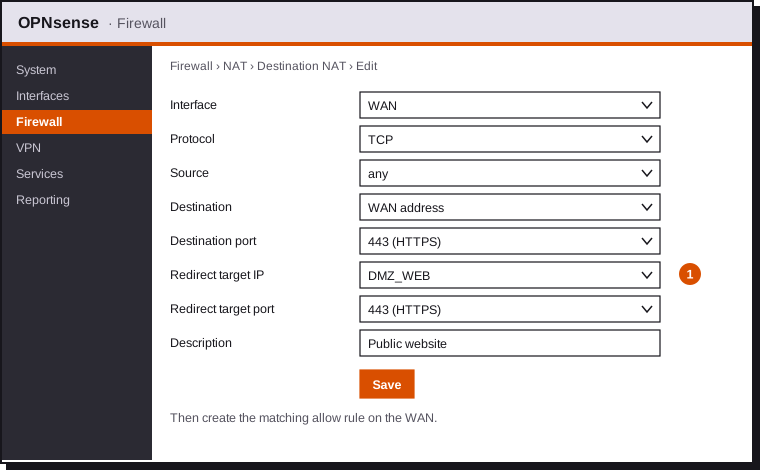
- Create the redirection: WAN, TCP, destination WAN address port 443, redirected to DMZ_WEB port 443.
- Create the rule on the WAN interface: Pass, TCP, source any, destination DMZ_WEB, port 443 (rule 1 of the WAN table). The rule applies to the address after translation, the server's.
- For internal computers to reach the site by its public name, don't rely on NAT reflection: add a Host override in Services › Unbound DNS › Overrides that returns
10.10.60.10directly forwww.example.com.
If several sites share port 443, publish a reverse proxy in the DMZ (Caddy, Traefik, Nginx Proxy Manager, or OPNsense's HAProxy plug-in) that routes by the name requested.
9. Securing the firewall itself
Limit access to the interface
System › Settings › Administration:
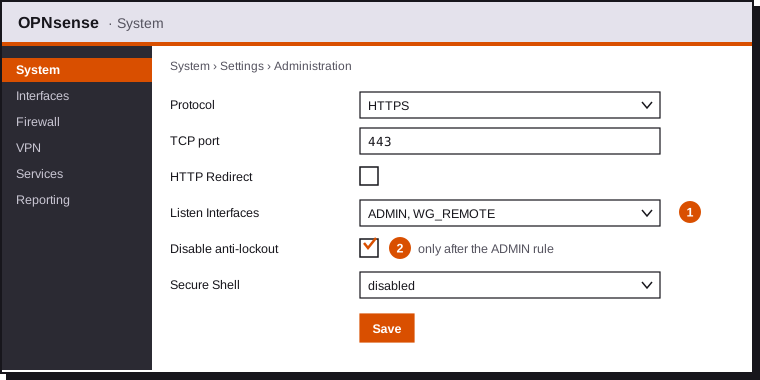
- Listen Interfaces: ADMIN and the WireGuard interface only.
- HTTP Redirect unticked, Secure Shell disabled (or limited to ADMIN with keys).
- The anti-lockout rule always allows access to the interface from the original LAN. Only disable it after checking, from another tab, that the ADMIN rule ("Pass ADMIN net → any") works.
- Two-factor authentication: System › Access › Servers, add a server of type Local + Timebased One Time Password, then generate each account's TOTP secret in System › Access › Users. Switch the interface's authentication to this server in System › Settings › Administration. See two-factor authentication.
- Create a named account (for example
spo) with administration rights, and keeprootfor emergencies.
WireGuard VPN for remote users
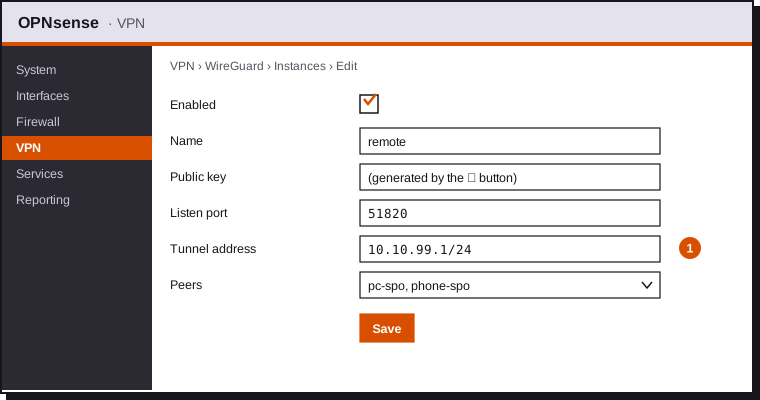
- VPN › WireGuard › Instances, +: name
remote, port51820, tunnel address10.10.99.1/24. Save, reopen the instance and generate the key pair with the gear icon.
- VPN › WireGuard › Peers, +: one peer per device (
pc-spoat10.10.99.2/32,phone-spoat10.10.99.3/32) with the device's public key. The Peer generator does it all at once and produces a QR code for the phone. - Add the peers to the instance, then enable WireGuard in VPN › WireGuard › General.
- Interfaces › Assignments: assign
wg0with the nameWG_REMOTE, enable it, tick Lock, with no IP address. - WAN rule: Pass, UDP, destination WAN address, port 51820.
- WG_REMOTE rules: for example Pass
WG_REMOTE net→SERVERS net(needed ports) and →ADMIN netfor administrators.
Client configuration (official WireGuard app):
[Interface]
PrivateKey = <the device's private key>
Address = 10.10.99.2/32
DNS = 10.10.99.1

[Peer]
PublicKey = <public key of the remote instance>
Endpoint = vpn.example.com:51820
AllowedIPs = 10.10.0.0/16
PersistentKeepalive = 25
AllowedIPs = 10.10.0.0/16 only sends traffic for the company's networks through the tunnel. Use 0.0.0.0/0 to send all traffic through it, adding an outbound NAT rule for the tunnel network in that case. See also remote access.
Intrusion detection (optional)
Services › Intrusion Detection › Administration: enable the service, choose the WAN interface, download the rulesets (Download tab, for example ET open), and start in detection-only mode for a few weeks before switching to blocking (IPS mode). Detection uses CPU: keep an eye on the load.
Back up and update
- System › Configuration › Backups: download the configuration (XML file), encrypted with a password, after every significant change. The os-git-backup plug-in sends it automatically to a private Git repository.
- System › Firmware: apply minor updates as soon as they come out (several a month), and wait a few days for major versions (January and July), until the first fixes arrive.
- The console (option 13) Restore a backup) restores a configuration onto a fresh installation in minutes.
10. Test
Don't assume the rules work: check them from each zone.
| From | Test | Expected result |
|---|---|---|
| OFFICES | nslookup www.example.com then open a website |
Works |
| OFFICES | Open https://10.10.10.1 |
Fails (timeout) |
| OFFICES | Test-NetConnection 10.10.30.20 -Port 445 |
TcpTestSucceeded : True |
| GUESTS | ping 10.10.20.1 then ping 10.10.30.10 |
Fails |
| IOT | Reach a computer in OFFICES | Fails |
| DMZ | curl -I https://www.debian.org |
Works |
| DMZ | nc -zv 10.10.30.10 445 |
Fails |
| Internet (4G) | https://www.example.com |
The DMZ website answers |
| Internet (4G) | Scan the public address (nmap -Pn from an outside machine) |
Only 443/TCP and 51820/UDP answer |
Blocks can be seen live in Firewall › Log Files › Live View, filtered by interface or address.
11. Troubleshooting
| Symptom | Likely cause | Solution |
|---|---|---|
| No more access to the web interface | Anti-lockout disabled too early, or wrong ADMIN rule | From the console: 8) Shell, then pfctl -d disables filtering while you fix it; pfctl -e re-enables it |
| Nothing goes out to the internet | WAN with a private address and "Block private networks" ticked | Untick the option on the WAN in a double NAT setup |
| A VLAN doesn't get an address | Switch port tagged incorrectly, or interface missing from Dnsmasq | Check the trunk and the native VLAN; select the interface in Dnsmasq |
| Internal names don't resolve | Unbound doesn't forward the local domain to Dnsmasq | Query Forwarding to 127.0.0.1:53053 |
| The port forward doesn't answer | Missing WAN rule (no longer created automatically since 26.1) | Add the Pass rule to the server's address |
| The VPN connects but nothing gets through | No rule on WG_REMOTE, or incomplete AllowedIPs | Add the rules; check AllowedIPs on the client |
12. Checklist
| Item | Done? |
|---|---|
| OPNsense installed on ZFS, up to date, root password stored | ☐ |
LAN renamed ADMIN at 10.10.10.1/24, VLANs 20 to 60 created, assigned and addressed |
☐ |
| Switch configured: trunk to the firewall, native VLAN 10, access ports per zone | ☐ |
| Dnsmasq hands out addresses, Unbound resolves and forwards the local domain | ☐ |
| Aliases created before the rules | ☐ |
| Rules written zone by zone according to the flow matrix, with descriptions | ☐ |
| Access to the firewall blocked from OFFICES, SERVERS, IOT, GUESTS and DMZ | ☐ |
| Destination NAT redirection and WAN rule for the single published server | ☐ |
| Admin interface limited to ADMIN and the VPN, two-factor authentication active | ☐ |
| WireGuard VPN working with one peer per device | ☐ |
| Configuration backed up, encrypted, off the firewall | ☐ |
| Tests carried out from each zone and from the internet | ☐ |