

Before you start
- For storage in detail, see Choosing an SSD
In plain words
A PC is a kitchen. The processor is the cook, the RAM their worktop, the storage the cupboard where everything is kept, the graphics card a specialist pastry chef, the motherboard the kitchen itself (walls, sockets, plumbing) and the power supply the electricity meter. A great chef on a tiny worktop is still slow: balance matters more than the power of any single part.
This page explains the role of each component, what to look for on its spec sheet and the compatibility traps. The build itself is covered in Building your PC step by step.
1. Overview
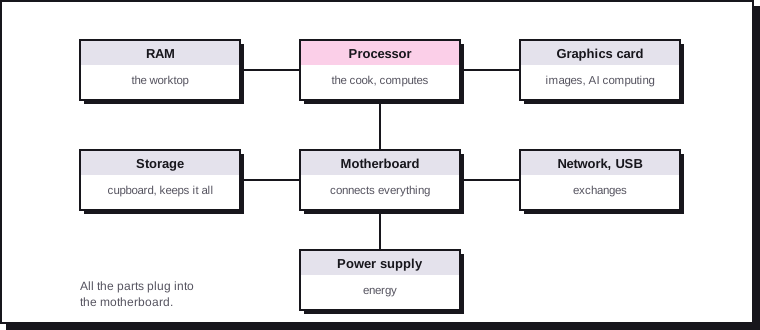
| Component | Role | Analogy | Key criterion |
|---|---|---|---|
| Processor (CPU) | Runs calculations and programs | The cook | Number of cores, generation, socket |
| Motherboard | Connects all the parts | The kitchen | Socket, chipset, form factor |
| RAM | Holds the data in use | The worktop | Capacity, two modules |
| Storage (SSD) | Keeps files and the system | The cupboard | NVMe, capacity, endurance |
| Graphics card (GPU) | Computes the display, 3D, AI | The specialist pastry chef | Power, amount of VRAM |
| Power supply | Converts mains current | The electricity meter | Wattage, quality, certification |
| Case | Protects and ventilates | The walls | Form factor, airflow, dimensions |
| Cooling | Removes heat | The extractor hood | Thermal capacity, height |
2. The processor (CPU)
The processor executes the instructions of every program. Its useful specifications:
- Cores and threads: each core is an independent processing unit. 6 cores are enough for office work and gaming; 8 to 16 cores are useful for video editing, compiling or virtualisation.
- Clock speed (in GHz): the speed of each core. It can only be compared between processors of the same generation.
- Cache: a small, ultra-fast built-in memory. AMD's Ryzen X3D chips carry much more of it, which mainly benefits games.
- Integrated graphics (iGPU): lets you display an image without a graphics card. Handy for office work, a home server or troubleshooting.
- Power consumption (TDP): indicates the heat to be removed, and therefore the cooling required.
The two current platforms:
| AMD | Intel | |
|---|---|---|
| Socket | AM5 | LGA1851 |
| Processors | Ryzen 9000 (Zen 5), Ryzen 7000 | Core Ultra 200S and 200S Plus (Arrow Lake) |
| Memory | DDR5 only | DDR5 only |
| Upgrade path | AMD has announced the next generation (Zen 6) on the same AM5 socket, after a BIOS update | Leaks point to a new socket for the next generation (not confirmed) |
The socket decides everything
The socket is the processor's physical mount on the motherboard. An AM5 processor only fits an AM5 board. Choose the platform first, then the motherboard that goes with it.
3. The motherboard
The motherboard connects everything: it carries the socket, the memory slots, the M.2 and PCIe slots, the case connectors and the chip that handles USB and drives (the chipset).
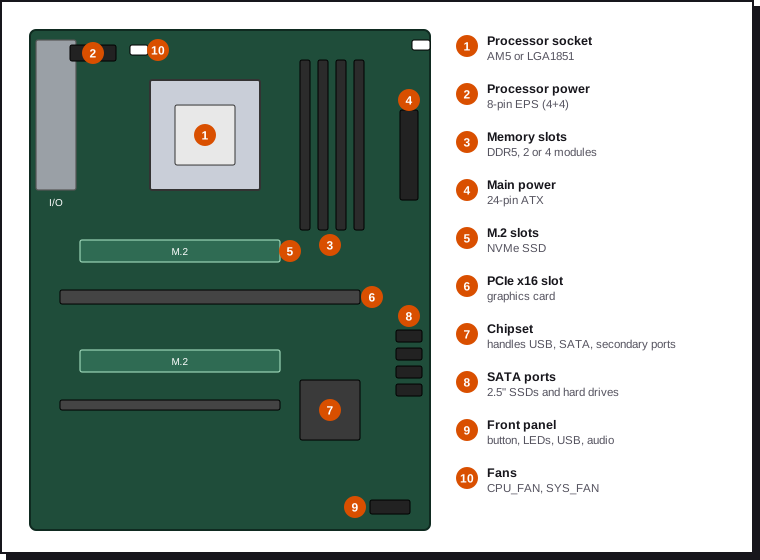
The chipset sets the level of features:
| Platform | Chipset | What it brings |
|---|---|---|
| AMD AM5 | X870E / X870 | PCIe 5.0 for the graphics card and the SSD, mandatory USB4, overclocking |
| B850 | PCIe 5.0 for at least one SSD, overclocking; USB4 optional | |
| B840 / A620 | Entry level, PCIe 4.0, no processor overclocking | |
| Intel LGA1851 | Z890 | Processor and memory overclocking, the most PCIe lanes and USB ports |
| B860 | Memory overclocking, PCIe 5.0 for the graphics card and one SSD | |
| H810 | Entry level: two memory modules maximum, no overclocking |
Form factors determine the size and the number of slots:
| Form factor | Dimensions | For whom |
|---|---|---|
| ATX | 30.5 × 24.4 cm | The standard: 4 memory slots, several PCIe and M.2 slots |
| Micro-ATX | 24.4 × 24.4 cm | Compact, often 2 or 4 memory slots |
| Mini-ITX | 17 × 17 cm | Very small PC: 2 memory slots, a single PCIe slot |
Other points to check:
- Power delivery (VRM): it powers the processor. A high-end processor needs well-cooled VRMs (heatsinks visible around the socket).
- Number of M.2 slots and their generation (PCIe 4.0 or 5.0).
- Rear connectivity: 2.5 Gbit/s networking, Wi-Fi, number of USB ports, video outputs if you use the iGPU.
- BIOS Flashback: updates the BIOS from a USB stick without a processor installed. Useful when an older board needs to recognise a more recent processor.
4. RAM
RAM holds what the processor is using right now: open tabs, programs, virtual machines. It's wiped when the PC is switched off. When it's full, the system spills over onto the SSD, which is much slower.
| Use | Recommended capacity |
|---|---|
| Office work, browsing | 16 GB |
| Gaming, multitasking, development | 32 GB |
| Video editing, virtualisation, homelab | 64 GB and more |
- Type: the AM5 and LGA1851 platforms only accept DDR5. DDR4 modules physically don't fit.
- Two modules: the processor accesses memory through two channels. Two identical modules (2 × 16 GB rather than 1 × 32 GB) double the bandwidth. Put them in the slots shown in the manual (often A2 and B2).
- EXPO (AMD) and XMP (Intel) profiles: by default, memory runs at a cautious speed. Turn on the profile in the BIOS to reach the speed printed on the module.
- Four modules: possible, but the achievable frequency often drops. For a lot of memory, prefer two large modules.
- ECC: memory that corrects errors, useful for a server or a NAS. It needs a compatible processor and motherboard.
Memory shortage
Demand from AI data centres is absorbing a large share of DDR5 memory and SSD chip production. Manufacturers are announcing lasting tightness, at least until 2027-2028. If a memory kit is sold with a processor or motherboard, look at the bundle: it may be easier to find.
5. Storage
The SSD holds the system, programs and your files. The M.2 NVMe format is now the norm: it screws directly onto the motherboard, with no cable.
- 1 TB is a good minimum for a main PC; 2 TB for gaming or video.
- A PCIe 4.0 SSD is enough for almost every use. PCIe 5.0 adds little day to day and runs hotter.
- A hard drive is still worthwhile for storing lots of cold data (backups, archives), not for the system.
All the details (form factors, protocols, endurance, cloning) are on the page Choosing an SSD.
6. The graphics card (GPU)
The graphics card computes the image shown on screen. It's also used for video editing, 3D rendering and local AI, because it performs thousands of simple calculations in parallel.
Do you need a dedicated card?
| Use | Integrated graphics (iGPU) | Dedicated card |
|---|---|---|
| Office work, video, browsing | Enough | Unnecessary |
| Server, homelab | Enough | Only for transcoding or AI |
| Gaming | Light games only | Essential |
| Video editing, 3D | Limited | Recommended |
| Local AI | Very limited | Essential, with lots of VRAM |
The current ranges: Nvidia GeForce RTX 50, AMD Radeon RX 9000 and Intel Arc B.
- VRAM: the card's own memory. It limits texture sizes in games and above all the size of the AI models you can run. For local AI, the amount of VRAM matters more than raw power.
- Power: powerful cards connect with a 12V-2x6 connector (16 pins). Push it in until it clicks, without bending the cable right at the plug: a badly seated connector can overheat.
- Dimensions: check the maximum length accepted by the case and the thickness (number of slots taken up).
7. The power supply
The power supply converts the mains alternating current into direct voltages (12 V, 5 V, 3.3 V) for each part. It's the component not to skimp on: a poor power supply can make the PC unstable, or even damage the other parts.
- Wattage: add up the consumption of the processor and the graphics card, then add about 30 to 40% headroom. Graphics card manufacturers state a recommended power supply wattage.
- Efficiency: the 80 PLUS labels (Bronze, Gold, Platinum…) and Cybenetics (more recent and more demanding) indicate how much energy is lost as heat. Gold is a good level for a PC that is on a lot.
- ATX 3.1 standard: handles the brief power spikes of modern graphics cards and provides a native 12V-2x6 connector.
- Modular: cables are connected as needed, which makes cable management in the case easier.
- Quality: rely on independent reviews and the length of the warranty (often 7 to 10 years on good models) rather than the stated wattage.
8. The case
The case protects the components and organises the airflow.
- Form factor: it must accept the motherboard (ATX, Micro-ATX, Mini-ITX).
- Maximum dimensions: graphics card length, CPU cooler height, liquid-cooling radiator size. They're listed on the spec sheet.
- Airflow: a mesh front panel ventilates far better than a solid glass one. Air comes in at the front and bottom, and goes out at the back and top.
- Front panel: check the useful ports (USB-C, USB-A) and their compatibility with the motherboard's headers.
- Removable dust filters: a real plus for maintenance.
9. Cooling
The processor heats up and must be cooled by an air cooler (heatsink and fan) or liquid cooling.
| Solution | Advantages | Drawbacks |
|---|---|---|
| Air cooler | Reliable, quiet, nothing to leak, practically indestructible | Bulky, sometimes gets in the way of the memory |
| AIO liquid cooler (all-in-one) | Effective on power-hungry processors, frees up space around the socket | Pump that can fail, limited lifespan |
- Some processors are sold with a stock cooler, enough for light use.
- Thermal paste fills the micro-gaps between the processor and the heatsink. New coolers often come with a layer already applied.
- Check mounting compatibility (AM5 or LGA1851) and the height against the case.
- Plan for at least two case fans: one intake, one exhaust.
10. Other items
- Network: the motherboard includes Ethernet (often 2.5 Gbit/s) and sometimes Wi-Fi 6E or 7. Otherwise, a PCIe card or a USB adapter does the job.
- Operating system: plan for a Windows licence or a Linux distribution, and a USB stick of at least 8 GB for the installation.
- Peripherals: monitor, keyboard, mouse. To use the iGPU, plug the monitor into the motherboard, otherwise into the graphics card.
11. Typical builds
These benchmarks indicate a balance, not a specific model.
| Use | Processor | RAM | Storage | Graphics card | Power supply |
|---|---|---|---|---|---|
| Office, family | 6 cores with iGPU | 16 GB (2 × 8) | 1 TB NVMe SSD | None | 450 to 550 W, Bronze or better |
| Homelab, server | 8 cores, low power, iGPU | 32 to 64 GB, ECC if possible | NVMe system SSD + data drives | None | 450 to 550 W, Gold |
| Gaming | 6 to 8 cores (X3D ideal) | 32 GB (2 × 16) | 2 TB NVMe SSD | Mid-range or high-end | 750 to 850 W, Gold, ATX 3.1 |
| Creative work (video, 3D) | 12 to 16 cores | 64 GB | 2 NVMe SSDs (system + projects) | Mid-range or above | 850 W, Gold, ATX 3.1 |
| Local AI | 8 cores or more | 64 GB | 2 TB NVMe SSD (models are large) | As much VRAM as possible | 850 to 1000 W, Gold, ATX 3.1 |
12. Compatibility checklist before buying
| Item | Done? |
|---|---|
| The processor socket matches the motherboard's (AM5 or LGA1851) | ☐ |
| The motherboard BIOS supports this processor (manufacturer's compatibility list) | ☐ |
| The memory is DDR5, in a kit of two identical modules | ☐ |
| The memory kit is on the motherboard's compatibility list (QVL), or from a reputable brand | ☐ |
| The motherboard form factor fits the case | ☐ |
| The graphics card fits the case in length and thickness | ☐ |
| The CPU cooler is compatible with the socket and fits the case in height | ☐ |
| The motherboard has enough M.2 slots for the planned SSDs | ☐ |
| The power supply has enough wattage and the right connectors (12V-2x6 if needed) | ☐ |
| Without a graphics card: the processor does have integrated graphics | ☐ |
| A licence or an installation USB stick for the system is planned | ☐ |
Checking your build online
Build-planning websites (such as PCPartPicker) automatically flag most socket, form factor and dimension incompatibilities. They don't replace reading the motherboard manual, but they avoid the obvious mistakes.
Once you have all the parts, the tutorial Building your PC step by step guides you from installing the processor to the first start-up. If something goes wrong at first power-on, the page PC won't start explains the diagnosis.