

Before you start
- Knowing how to open Terminal (Applications › Utilities › Terminal)
In plain words
A modern Mac is like a house built in one piece by the same architect. Apple silicon brings the processor, graphics and memory together under one roof. The Secure Enclave is a safe sealed into the wall. The system is kept in a room that is locked and inspected every time the house wakes up, while your belongings live in the room next door. And a steward, launchd, wakes each member of staff at the right moment.
This guide explains what really happens in an Apple silicon Mac. Understanding it helps you read Activity Monitor correctly, know why some tweaks are impossible and troubleshoot methodically.
1. The layers of macOS
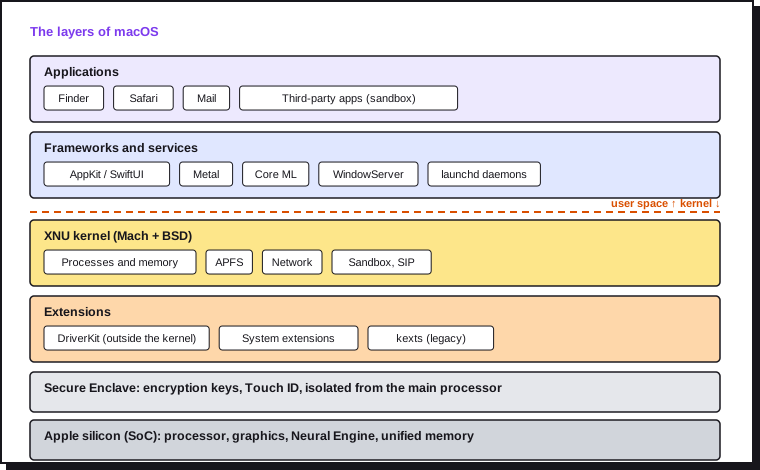
| Layer | Role |
|---|---|
| Applications | What you launch. App Store apps must run in a sandbox that limits what they can touch. |
| Frameworks and services | The building blocks provided by Apple: interface (AppKit, SwiftUI), graphics (Metal), on-device AI (Core ML), display (WindowServer) and hundreds of background daemons. |
| XNU kernel | A hybrid kernel: Mach (memory, processes, communication) and BSD (files, network, Unix permissions). macOS is a certified Unix system. |
| Extensions | The drivers. Apple has moved them out of the kernel: DriverKit and system extensions run in user space. Old kernel extensions (kexts) are still tolerated, but require lowering boot security. |
| Secure Enclave | An isolated subsystem in the chip, with its own processor and its own operating system. It holds the encryption keys and Touch ID data; even macOS can't read them. |
| Apple silicon (SoC) | Processor, graphics, Neural Engine, SSD controller and memory in a single package. |
Unified memory. On a PC, the processor and the graphics card each have their own memory. On an Apple silicon Mac, they share the same memory: no copying between the two, hence high performance for video or on-device AI. The trade-off: the memory is built into the chip and can never be added after purchase. You choose it once and for all.
2. Secure boot
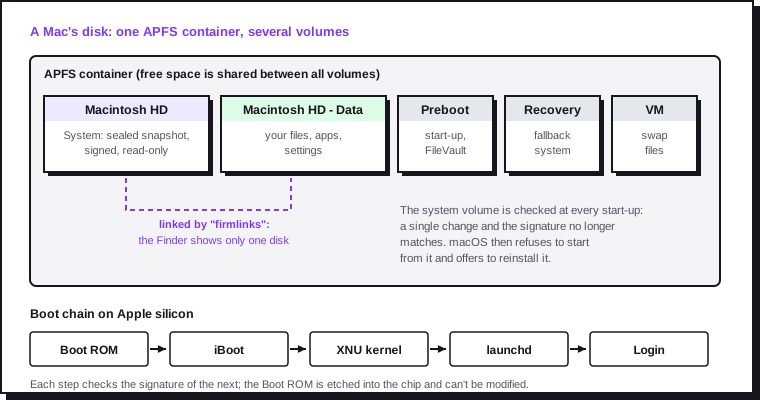
- Boot ROM. Code etched into the chip at manufacture, impossible to modify. It contains Apple's public key and checks the next step.
- iBoot. The boot loader checks the seal of the system volume, then loads the kernel, applying the security policy chosen for that system.
- XNU kernel. It initialises the hardware and the file system, then starts
launchd. - launchd (process number 1) starts all the services, then the login window.
The two levels of boot security, set in Startup Security Utility (from recovery mode):
| Level | What's allowed | Use |
|---|---|---|
| Full Security (default) | Only the latest version of macOS signed by Apple for this Mac | Recommended for everyone |
| Reduced Security | Older signed versions, third-party kernel extensions | Older professional hardware (audio, capture) that requires a kext |
Each system installed on the Mac has its own policy: a second test macOS can run at Reduced Security without weakening the main one.
Recovery mode. On an Apple silicon Mac, hold down the power button at start-up until "Loading startup options" appears. There you'll find macOS reinstallation, Disk Utility, Terminal, Time Machine restore and Startup Security Utility. A backup copy ("fallback recovery") is kept separately, and the Mac can also start from a recovery downloaded over the internet.
3. The disk: APFS and the sealed system volume
A Mac's SSD contains an APFS container that groups several volumes. Free space is shared: no volume has a fixed size.
| Volume | Content |
|---|---|
| Macintosh HD | The system, read-only |
| Macintosh HD - Data | Your files, applications, settings |
| Preboot | Files needed before unlocking (FileVault, boot policy) |
| Recovery | The recovery system |
| VM | Swap and hibernation files |
The Signed System Volume (SSV). The system is a sealed APFS snapshot: every file has a hash, and the whole is signed by Apple. At start-up, the boot loader checks this seal. A single modified file, and start-up stops: macOS then offers to reinstall itself. Malware therefore can't install itself permanently in the system, and an update replaces the snapshot in one go.
Firmlinks link the two volumes transparently: /Applications or /Users are physically on the Data volume, but the Finder only shows one disk.
diskutil apfs list          # APFS containers and volumes
diskutil info /             # startup volume, sealed or not
df -h /System/Volumes/Data  # space actually used by your data
Local snapshots. Time Machine creates APFS snapshots on the internal disk, even when no backup disk is connected. They appear as "purgeable" space and are freed automatically when space runs short.
tmutil listlocalsnapshots /
4. launchd and the processes to know
launchd is both the first process and the manager of all services. It reads configuration files (.plist) kept in four locations:
| Folder | Content | Runs as |
|---|---|---|
/System/Library/LaunchDaemons |
Apple daemons (protected, read-only) | System (root) |
/Library/LaunchDaemons |
Third-party software daemons | System (root) |
/Library/LaunchAgents |
Third-party agents for all users | Each user |
~/Library/LaunchAgents |
Agents for your account only | You |
A daemon runs without anyone signed in; an agent runs in the user's session. The third-party folders are where updaters, software helpers… and sometimes unwanted programs hide. System Settings › General › Login Items & Extensions lists them and lets you turn them off.
launchctl list | head -20                 # services in your session
ls /Library/LaunchDaemons ~/Library/LaunchAgents
The processes you'll come across in Activity Monitor:
| Process | Role |
|---|---|
| kernel_task | The kernel. It can deliberately occupy the processor to cool it down when the Mac gets hot |
| launchd | Starts and supervises all services |
| WindowServer | Composites everything displayed; strained by multiple displays and effects |
| mds, mds_stores, mdworker | Spotlight indexing; very active after an update or a migration |
| backupd | Time Machine backup |
| photoanalysisd, mediaanalysisd | Photo analysis (faces, objects), mostly at night and on mains power |
| bird, cloudd | iCloud Drive sync |
| cfprefsd | Reading and writing preferences |
| tccd | Privacy permissions (camera, microphone, files) |
| syspolicyd, XProtect | App checks and built-in antivirus |
| softwareupdated | Finding and preparing updates |
| logd | The system's unified log |
Heavy activity from mds_stores or photoanalysisd after an update is normal and stops by itself. The page Speeding up a slow Mac explains the real causes of slowness.
5. The built-in protections
| Protection | What it does | Check |
|---|---|---|
| SIP (System Integrity Protection) | Forbids anyone, even the administrator, from modifying system folders and Apple processes | csrutil status |
| Signed System Volume | Makes the system read-only and verified at every start-up | diskutil info / |
| Gatekeeper | Only allows apps signed by an identified developer and notarised (scanned by Apple) | spctl --status |
| XProtect | Built-in antivirus: signatures updated silently, regular scans | System Settings › General › Software Update |
| TCC (transparency, consent and control) | Every access to the camera, microphone, screen or personal folders needs your consent | System Settings › Privacy & Security |
| Sandbox | Limits what each app can touch | Mandatory for the App Store |
| FileVault | Encrypts the Data volume; the key is protected by the Secure Enclave | fdesetup status |
Opening an app blocked by Gatekeeper. Since macOS 15, right-click › Open is no longer enough for an app that isn't notarised: you have to try opening it, then go to System Settings › Privacy & Security and click Open Anyway. This deliberate detour limits booby-trapped installations.
Resetting a permission when an app can no longer access the camera or a folder:
tccutil reset Camera                 # all apps, for the camera
tccutil reset All com.example.app    # one app, all permissions
Never disable SIP on an everyday Mac. The guide Security and privacy on the Mac covers FileVault, the firewall and privacy.
6. Memory, compression and swap
macOS uses all available memory: "full" memory isn't a problem in itself. The indicator to watch is memory pressure in Activity Monitor (Memory tab):
| Colour | Meaning |
|---|---|
| Green | All is well, even if the memory looks occupied |
| Yellow | macOS is compressing a lot of memory to cope |
| Red | The system is constantly writing to the SSD (swap): the Mac slows down, it lacks memory for this use |
Before writing to disk, macOS compresses unused memory, which is much faster. The swap file is on the VM volume.
memory_pressure | tail -1      # free memory level
sysctl vm.swapusage            # swap usage
7. Preferences and the folder tree
App settings are plist files (property lists). The cfprefsd daemon caches them: change them with the defaults command, never by editing the file while the app is running.
defaults read com.apple.finder        # Finder settings
defaults domains | tr ',' '\n' | head # list of domains
The folders to know:
| Folder | Content |
|---|---|
/System |
The system (sealed volume) |
/Library |
Resources shared by all users: fonts, extensions, third-party daemons |
~/Library |
Your settings, caches, app data (hidden by default: Cmd + Shift + . in the Finder, or the Go menu while holding Option) |
~/Library/Containers |
Data of sandboxed apps |
~/Library/Application Support |
Data of non-sandboxed apps |
/Applications |
Apps installed for everyone |
/opt/homebrew |
Tools installed by Homebrew on Apple silicon |
/private/var |
Logs, temporary files, variable system data |
The unified log. All system messages go through logd. The Console app displays them; in Terminal:
log show --last 10m --predicate 'eventMessage CONTAINS[c] "error"' | tail -20
log stream --predicate 'process == "softwareupdated"'
8. The update rhythm and the end of Intel Macs
| Type | When | Content |
|---|---|---|
| Major version | Every year in September | New features; macOS 27 "Golden Gate" was released on 14 September 2026 |
| Minor update (27.1, 27.2…) | Every one to two months | Fixes, additional features, security |
| Security update | As needed | Urgent fixes, including for the two previous versions |
In practice, Apple fixes security vulnerabilities in the current version and the two previous ones, but only the current version receives all the fixes. A Mac stuck on an older version is therefore less protected.
macOS 27 marks the end for Intel Macs. It only installs on Apple silicon Macs. It's also the last version to run Intel apps through Rosetta generally: check your software, because an app that is still Intel will need to be updated by its publisher or replaced.
sw_vers                                  # macOS version
system_profiler SPHardwareDataType       # model, chip, memory
To spot apps that are still Intel: System Information › Software › Applications, "Kind" column (Apple Silicon, Universal or Intel).
9. Tools for observing your Mac
| Tool | Where | What it shows |
|---|---|---|
| Activity Monitor | Applications › Utilities | Processor, memory, energy, disk, network per process |
| Console | Applications › Utilities | Unified log, crash reports |
| System Information | Apple menu › About This Mac › More Info › System Report | Hardware, software, extensions, battery |
| Disk Utility | Applications › Utilities | APFS volumes, checks (First Aid) |
| System Settings › General › Storage | Space breakdown and recommendations | |
top -o cpu |
Terminal | Most demanding processes |
sudo fs_usage -w -f filesys |
Terminal | Live disk access, useful for a disk that keeps "churning" |
sudo powermetrics --samplers cpu_power,gpu_power -n 1 |
Terminal | Chip power consumption and frequencies |
The other guides in this series build on these foundations: mastering and optimising macOS, security and privacy, maintenance and troubleshooting, and the advanced toolbox. In the meantime, the page Backing up your Mac with Time Machine remains the first habit to put in place.